Stop switching tools: find out how to plan, post, and report on your LinkedIn social media content, all without leaving monday.com
If your team already lives in monday.com, you don't need a separate social media scheduler.
Social Media Manager for monday.com puts your social media workflow right where your team already works: in monday.com! Once you've connected a LinkedIn Page, anyone with workspace access can create, schedule, and publish social posts, all without ever leaving your everyday work platform.
To show you how it works, I'll walk through the whole thing using my own account: connecting a LinkedIn Page, creating and scheduling a real post, checking the queue, and seeing how everything performed.
Get set up in two minutes
There are three quick things to sort out first:
- Install Social Media Manager for monday.com from the monday.com Marketplace and add it to your workspace. Once installed, it works in any workspace on your team's monday.com account.
- Unblock pop-ups. The app authenticates your social accounts through a pop-up window. If your browser blocks pop-ups, you'll be left wondering why nothing's happening.
- Decide which LinkedIn Page to connect. The free plan includes one connected social account, so decide which LinkedIn Page you want to try the app with. There’s no limit to the number of users or posts, so you can bring your whole team without rationing seats.
One more thing to note:
Social Media Manager for monday.com connects to LinkedIn Pages, not personal profiles, and you'll need to be an admin of the Page. If you're not, ask a Page admin to grant you access before you begin.
Step 1: Connect your LinkedIn Page
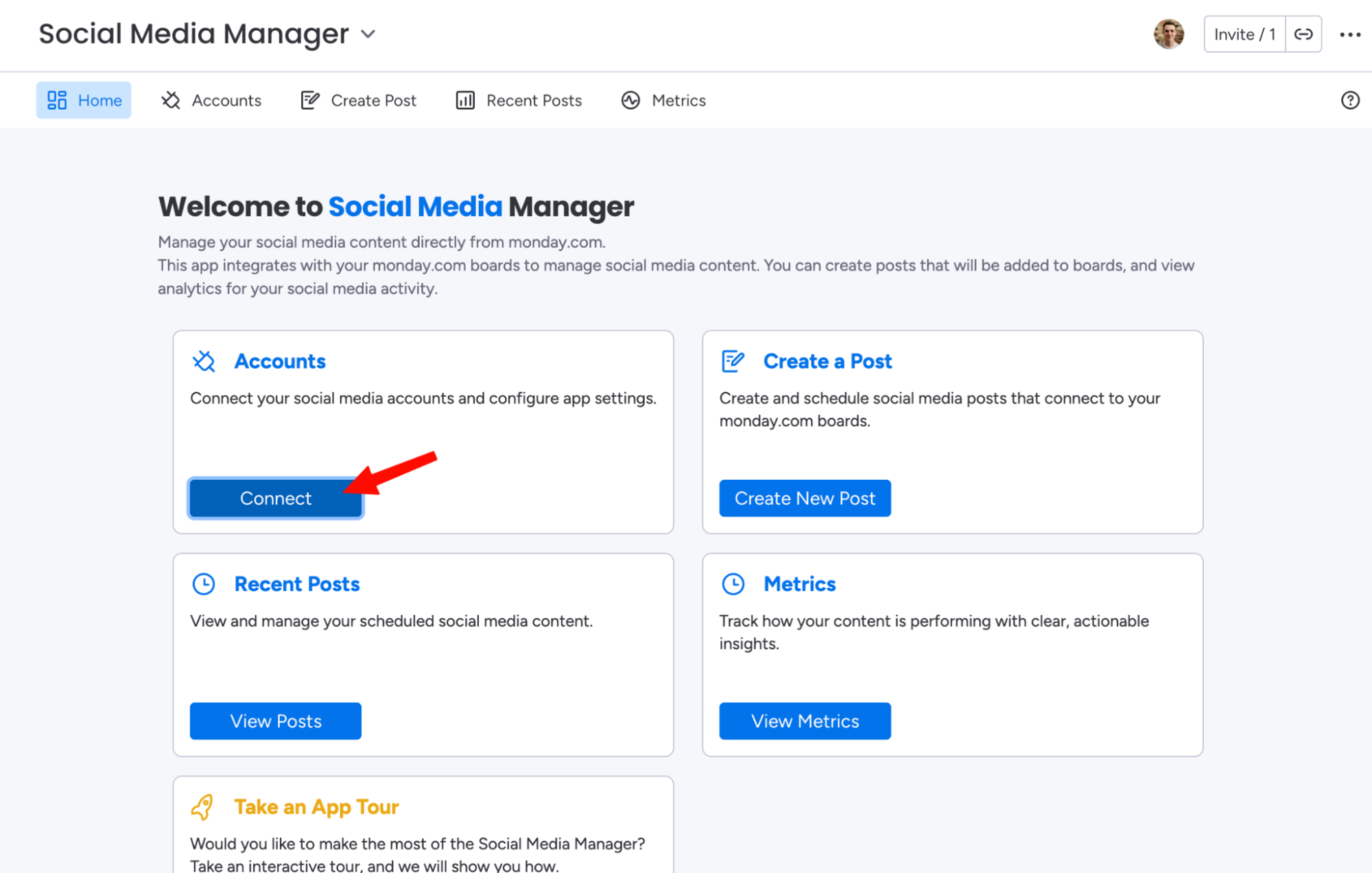
To connect your LinkedIn Company Page to monday.com, open Social Media Manager and select Accounts in the header (or Connect on your dashboard). Choose Connect New Account, then select LinkedIn.
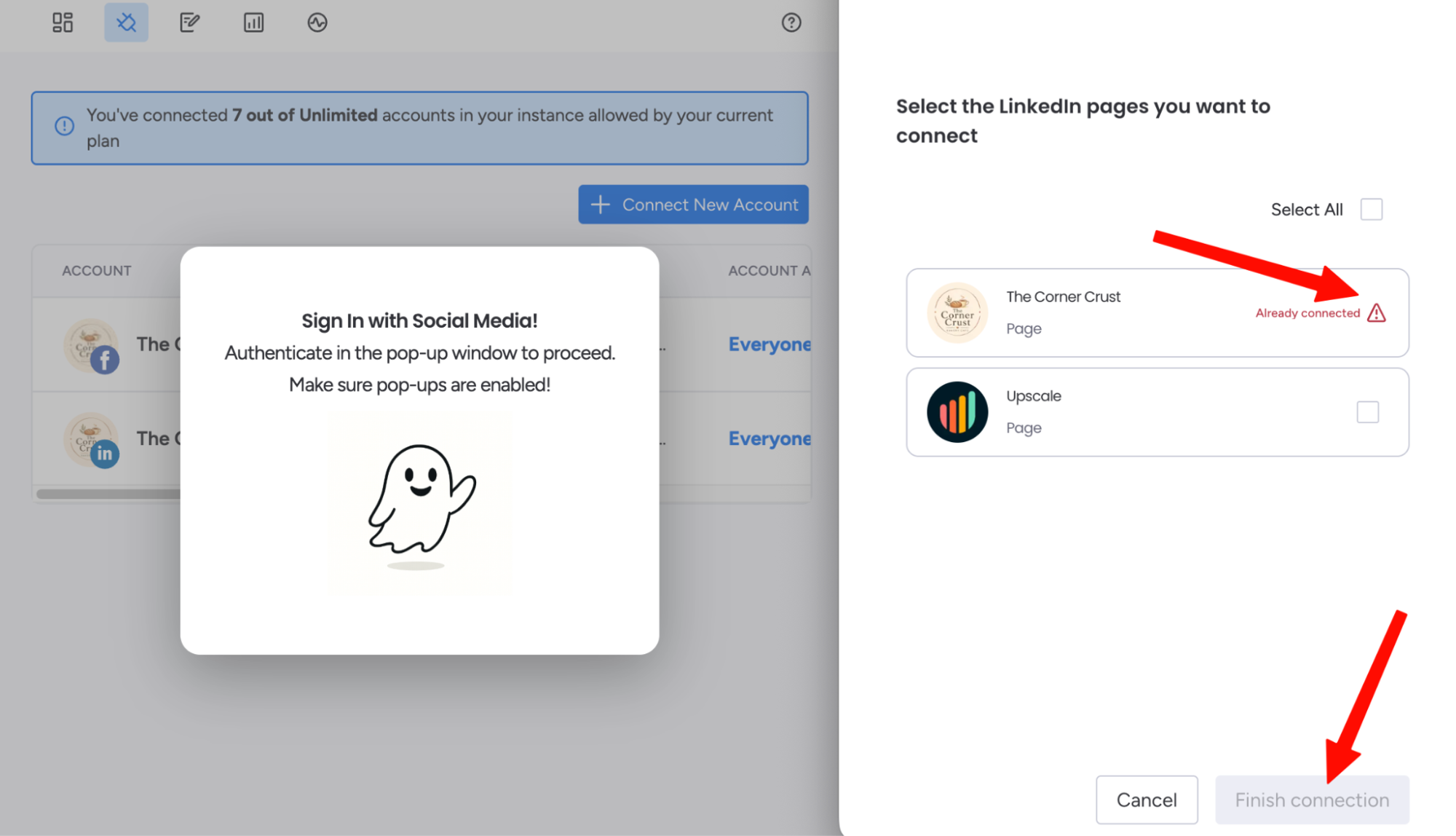
A pop-up appears showing every Page you administer (that's why the admin access mentioned before matters).
Pick the one you want, and click Finish connection.
And that's it! Your LinkedIn company account is now connected to Social Media Manager for monday.com.
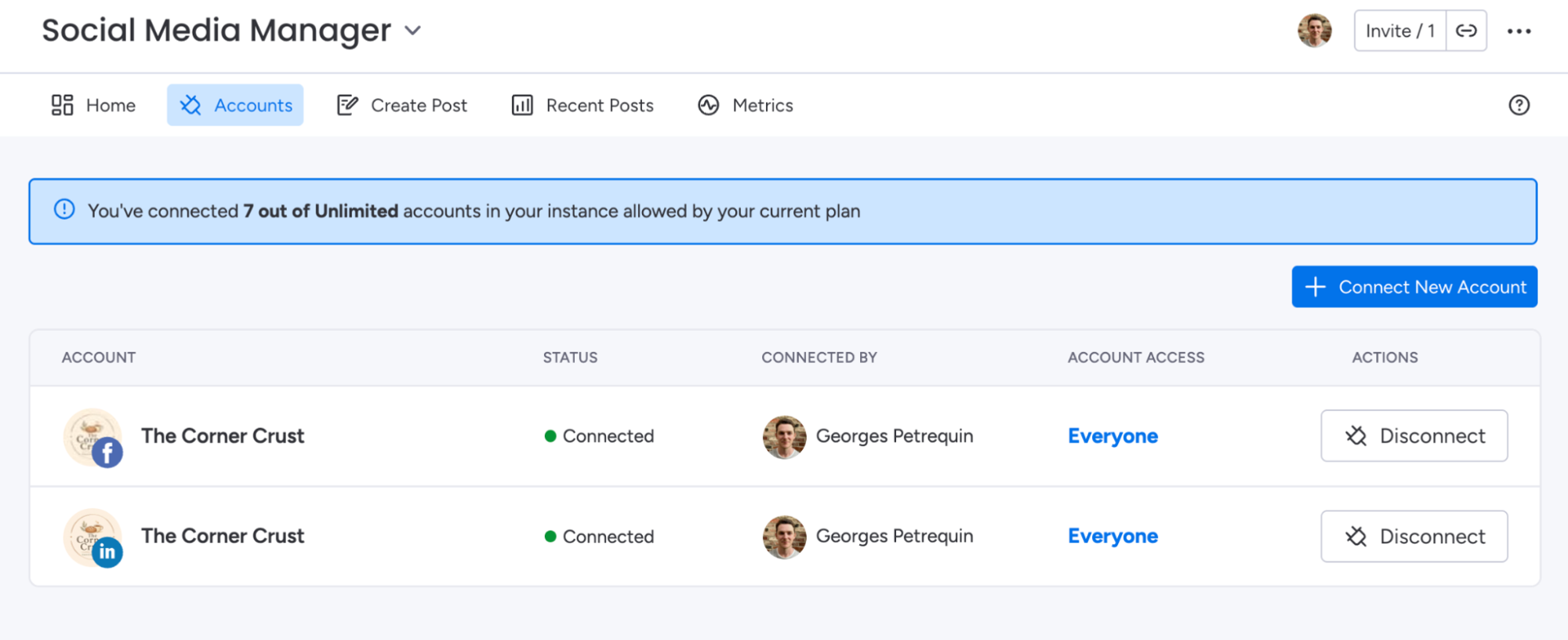
If successful, you'll now see your LinkedIn account (and any others you've connected) in the Accounts screen.
Step 2: Create your first post
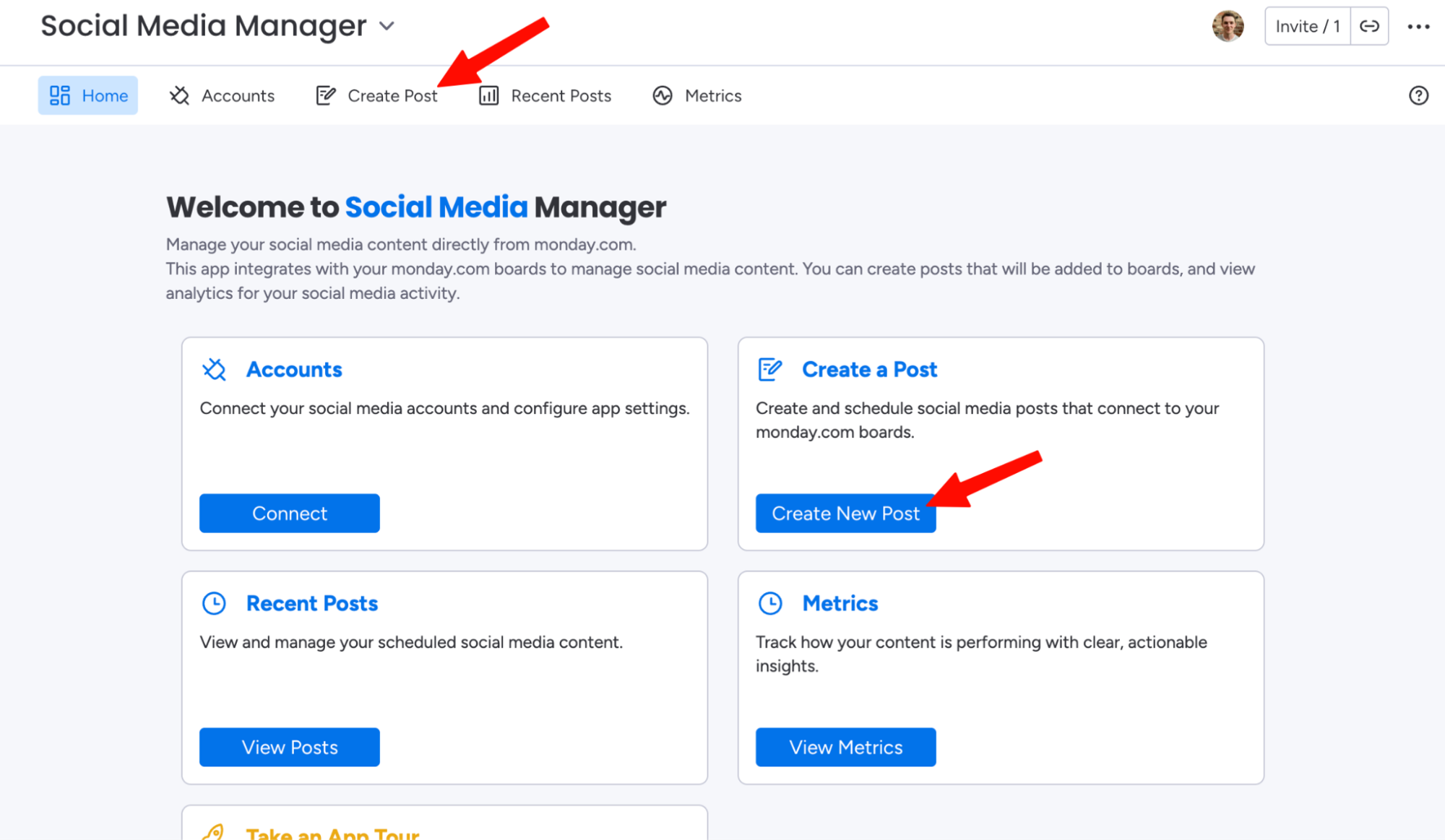
Select Create Post from the app's navigation bar (or 'Create a Post' from the dashboard).
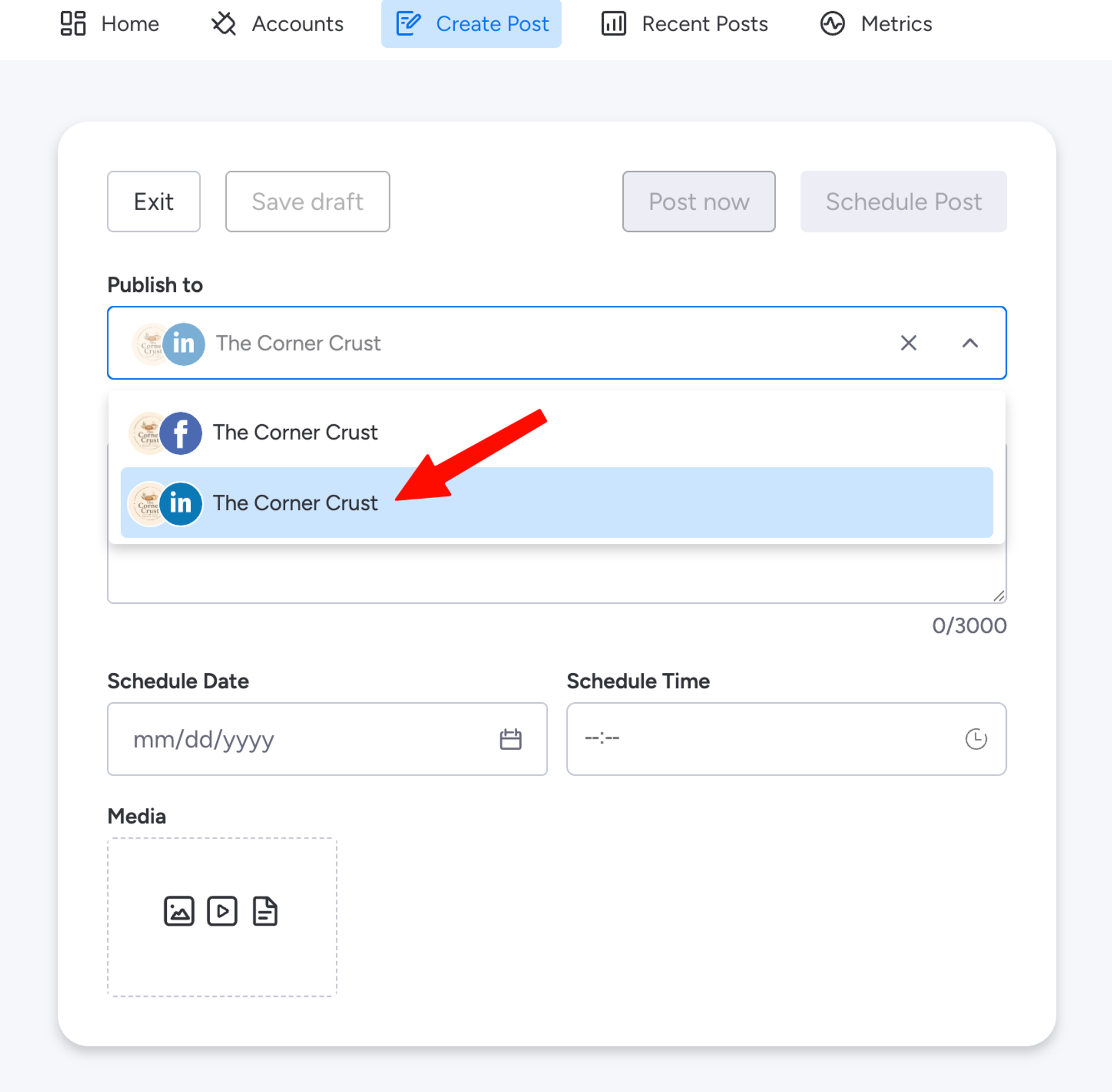
In the Publish To drop down, choose the LinkedIn Page you just connected.
Then the fun part: writing the post.
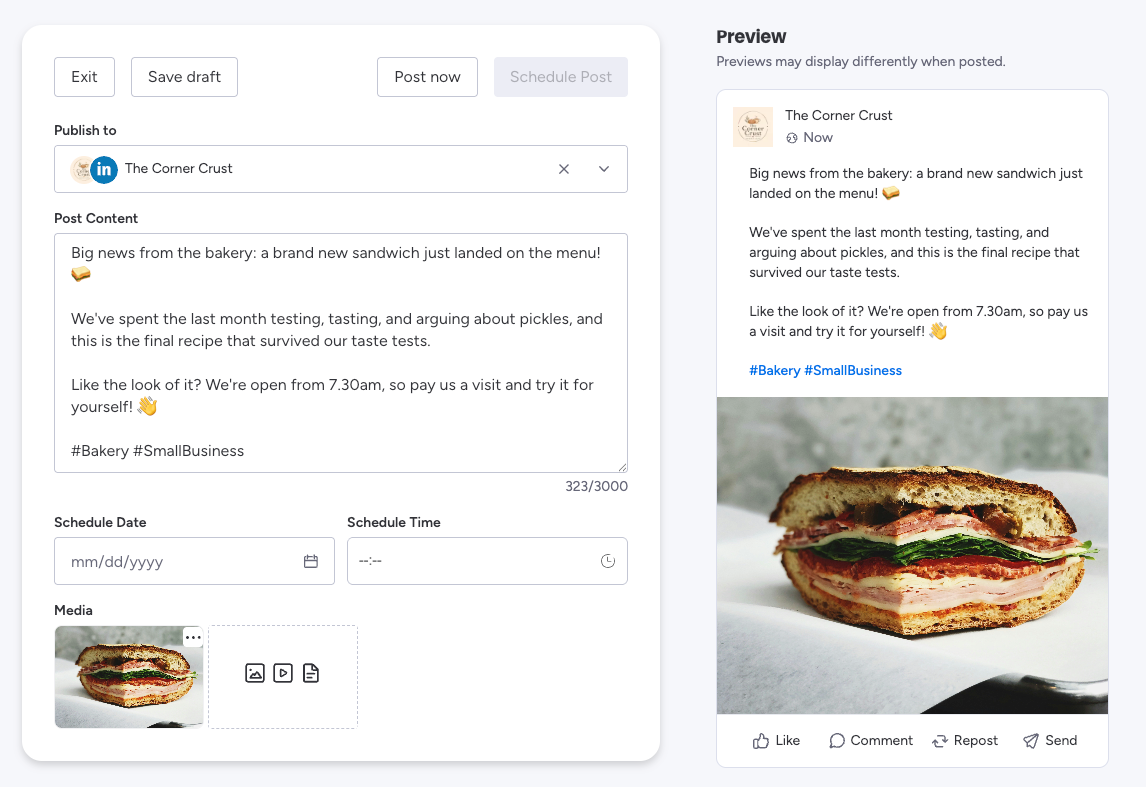
For this walkthrough, I'm scheduling a post highlighting a new sandwich at our bakery.
You can do everything you'd do if you were posting directly via LinkedIn: copy, hashtags, and multiple forms of media content are supported.
What you can attach
- Images: up to 9 per post. JPG, JPEG, PNG or GIF. 5 MB each; files up to 20 MB are compressed automatically. Recommended ratio: 1.91:1. Alt text: up to 1,000 characters per image.
- Video: 1 per post, between 3 seconds and 10 minutes.
- Documents: 1 per post. PPT, PPTX, DOC, DOCX or PDF, up to 100 MB.
If you're uploading an image, you can include alt text right from the app. If you're uploading a document, you can rename it in the app before publishing, so your audiences see Discover our new range of sandwiches instead of sandwiches-social-post-final-final-v4.pdf.
As you write and attach your content, you'll see your post preview on the right-hand side of the screen.
It shows you exactly how your post will look on the LinkedIn feed, including line breaks and image cropping. Since you can't swap media after attaching it (more on that below), this is the moment to make sure everything looks good.
Step 3: Publish now or schedule for later
Ready to share your post with the world? You have two options:
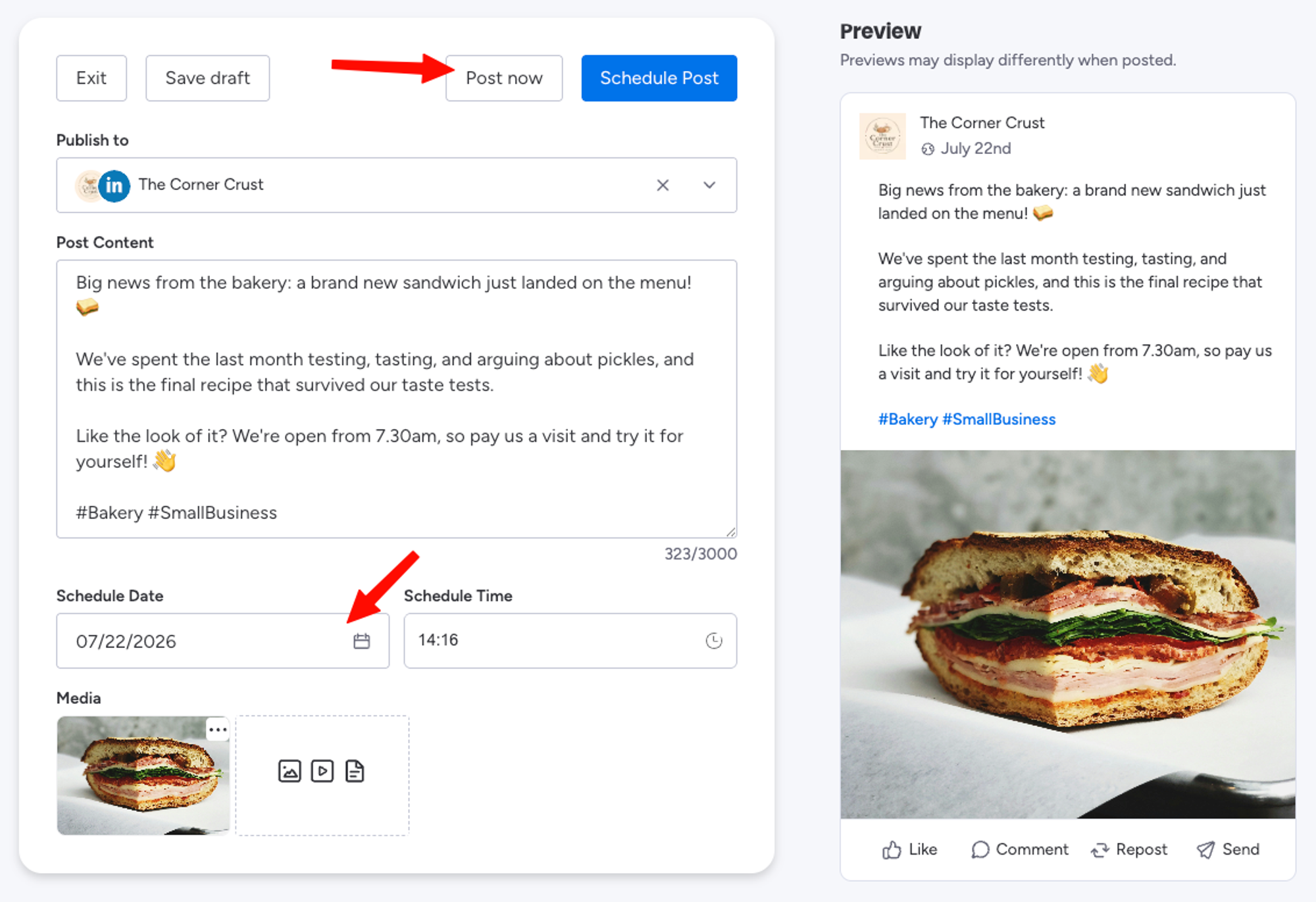
- Post Now publishes immediately.
- Or, pick a date and time in the future and select Schedule Post.
You can schedule anywhere from one minute ahead to any future date, and there's no cap on how many posts you can add to your social queue.
This means you can handle the 'we just got the last-minute approval, publish it as soon as possible' moment, or the deep planning session where you schedule out three weeks of social content in one sitting.
Step 4: See everything that's scheduled, right in monday.com
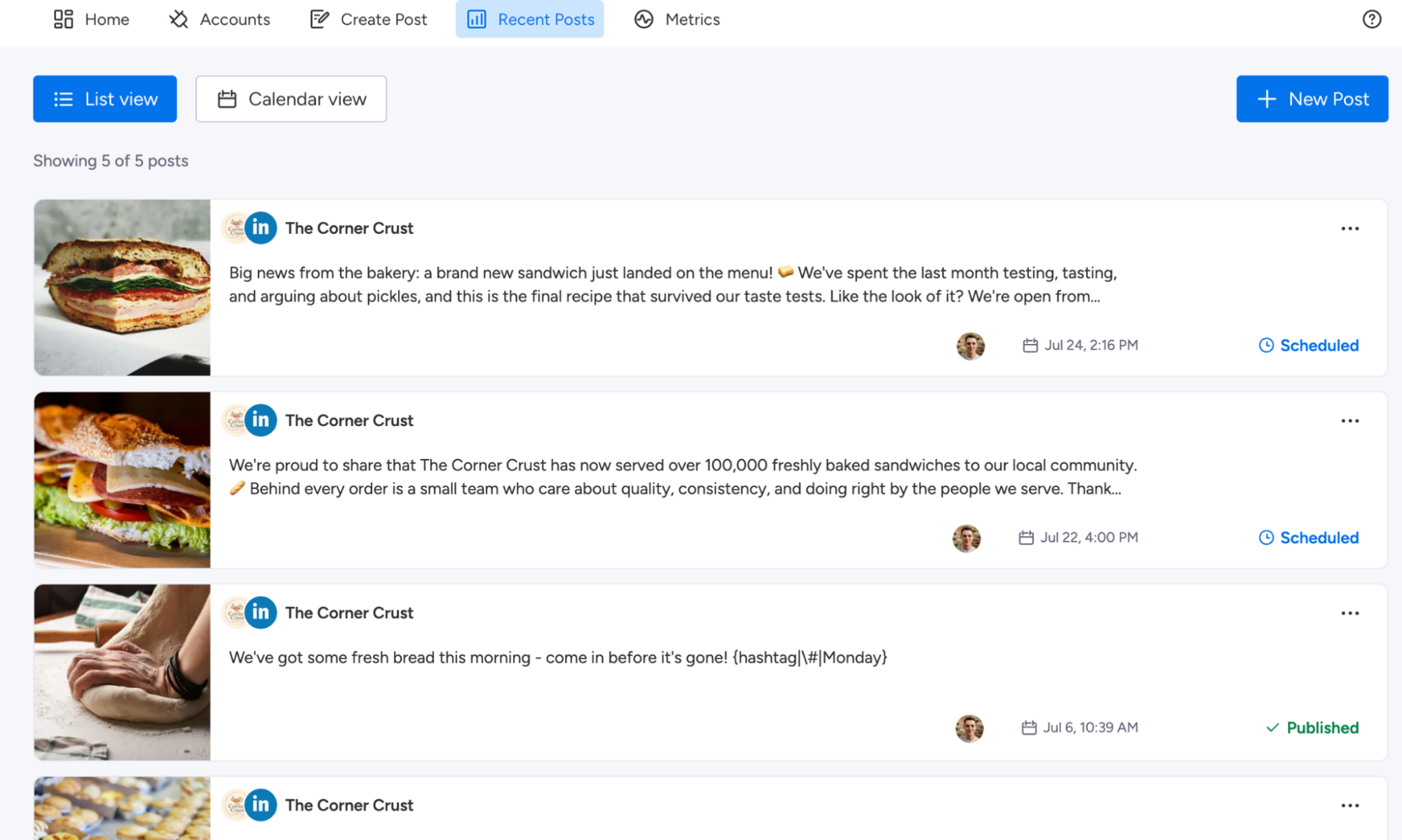
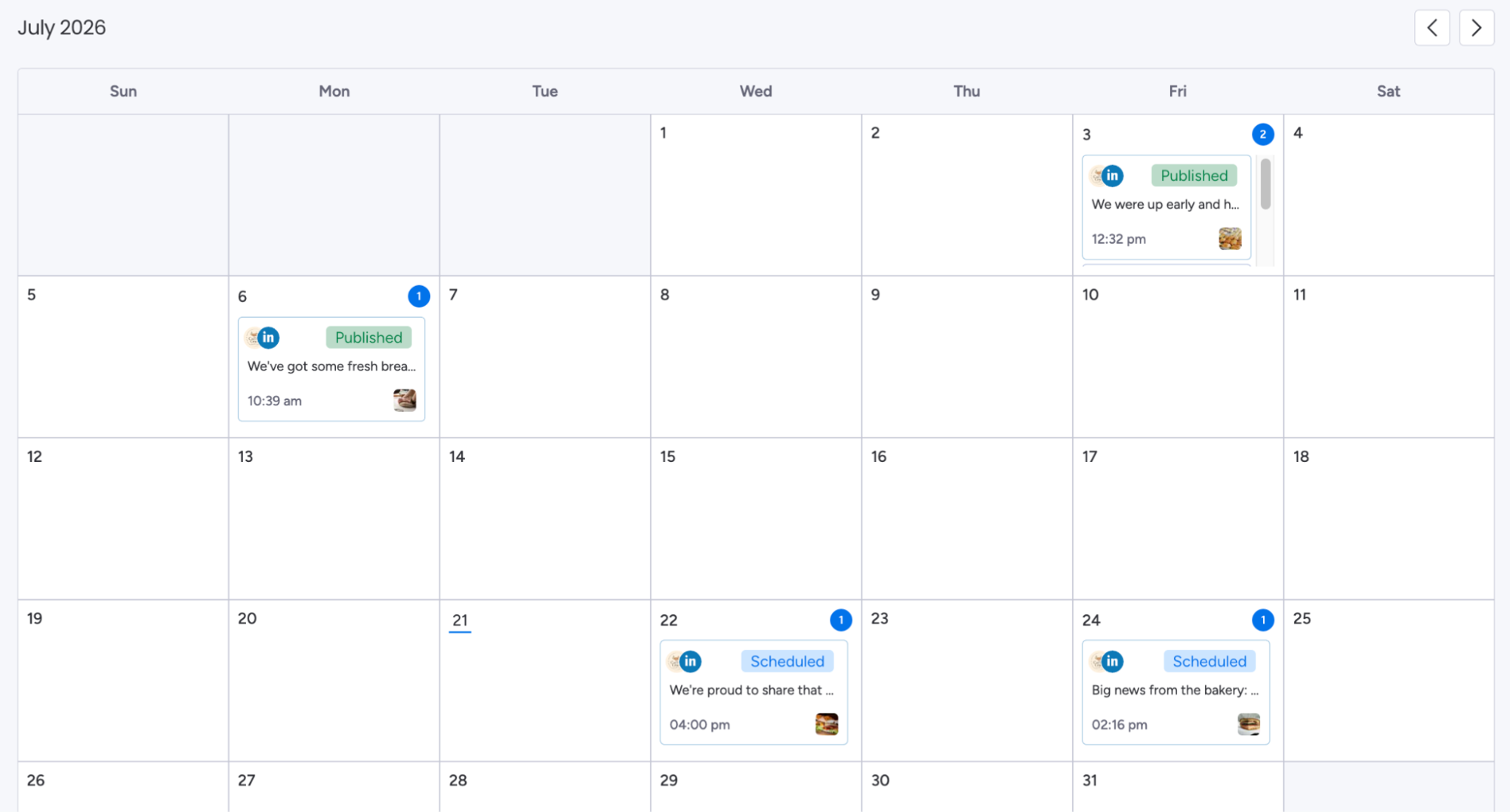
Scheduled posts don't vanish into the void. They land in the Recent Posts tab, alongside everything you've already published, in two views:
- List View shows who created each post, when it's due to go live (or when it went live), and its current status (published/scheduled).
- Calendar View gives you the month at a glance: daily post counts, platforms, statuses and publishing times. Click on any post to see the details.
In one glance, everyone can see what's scheduled, who wrote it, and when it goes out. You're not relying on one person's login to a third-party scheduler, and one person's holiday schedule won't take your social channels offline with them.
If you've scheduled a post but need to make changes, just click the three dots on either the list view, or the calendar view preview.
What you can edit depends on the post status:
- Scheduled posts: edit the copy or cancel entirely, any time before it goes live.
- Published posts: edit the caption right from the app. Make your changes, hit Update Post, and the live post updates on LinkedIn. Perfect for when you spot that typo you missed after proofreading your caption four times.
Step 5: Monitor your LinkedIn post performance
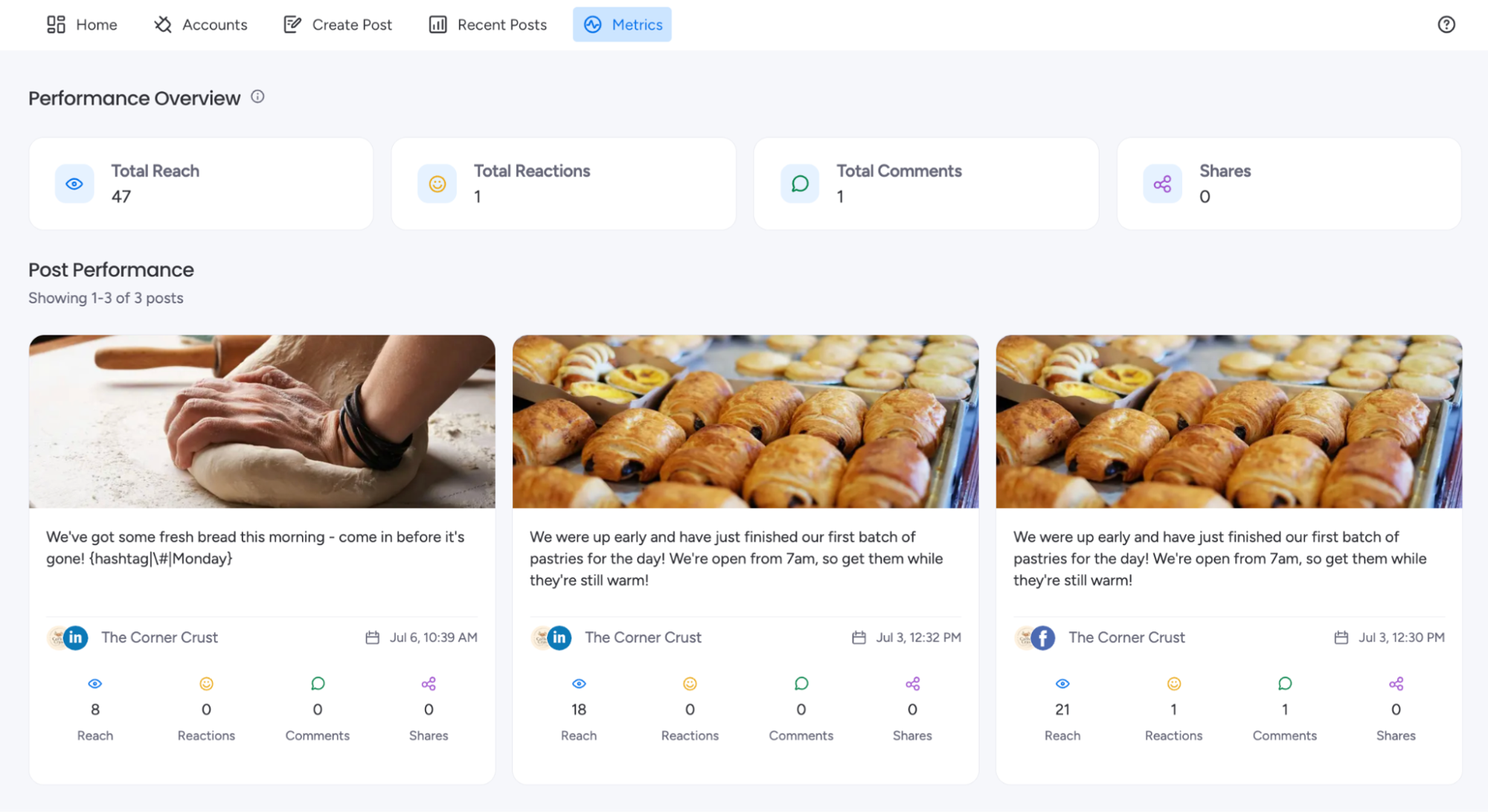
Once posts start going live, the Metrics screen shows a 30-day overview of reach, reactions, and shares across posts from your connected accounts as a whole, as well as for each individual post.
The numbers are pulled directly from LinkedIn, so the numbers match what you'd see natively, just without the tab-switching, clunky exporting, or inevitable 'why are these two dashboards different?' questions.
As you continue to publish, you'll see your numbers tick up and start to truly understand if your LinkedIn social strategy is paying off.
Ready to schedule your next LinkedIn post from monday.com?
A social scheduler should make publishing easier for the whole team, not just the person who holds the login. Social Media Manager keeps every post, scheduled and published, in one place: your centralised queue in monday.com.
Everyone can see what's planned and who's behind each post, and you’re not getting charged for each person who wants to see your social schedule.
The first connected account is free, so you can try it today and start posting!
Install Social Media Manager from the monday.com Marketplace, connect your LinkedIn Page, and schedule your next post today.
Schedule your next LinkedIn post from monday.com
Install Social Media Manager for monday.com for free today and start planning, posting, and tracking your social media performance, all without leaving monday.com.