A new, more efficient way to manage social content from your monday.com boards? #Like!
Share on socials
A new, more efficient way to manage social content from your monday.com boards? #Like!


Jump to Section
Jump to section
Getting started with Social Media for monday.com
Connecting your social media accounts
Creating and scheduling a social media post
Tracking metrics and post performance
Next steps
FAQs
Social Media Manager for monday.com: One workspace for every post
Greetings friends!
There's just something about this time of year. The heavy rain starts to ease, the days feel a little lighter, and you catch those first small signs of Spring on your morning walk (even if, here in the UK, there's still a fair chance you'll need a coat). It's a natural moment to reset, refocus, and look ahead to what you want to build over the months to come.
The 'Spring clean' mindset tends to bring fresh plans, renewed focus, and (if we're honest) a growing list of content ideas waiting to be organised. As plans take shape for the rest of the year, social media quickly becomes one of those areas that needs constant attention.
If social media is part of your world, you'll know how quickly good intentions can turn into scattered drafts, unclear approvals, and last-minute posting, and before you know it, you're already playing catch-up before the first Spring flowers have barely sprung!
That's exactly why we're so excited to introduce you to Social Media Manager for monday.com: our newest app designed to help teams plan, organise, and publish social content from the place they already do their best work every day.
Built by the same team behind much-loved (and award-winning) Recurring Tasks for monday.com, Social Media Manager makes your team's workday feel smoother and more connected by combining content planning, scheduling, and posting into a single workflow. From early ideas and approvals to scheduling and publishing posts to LinkedIn, Instagram and Facebook, everything lives inside your monday.com boards, so your team can spend less time juggling tools and more time crafting content that delivers real value.
Whether you're mapping out campaigns for the months ahead or simply trying to keep weekly posts on track, Social Media Manager helps your team stay aligned, focused, and in control.
Read on to see how Social Media Manager for monday.com works, explore its key benefits, and learn how to get started with your free trial today.
Full campaign visibility, from draft to publish
Ever feel like posting a single piece of content takes five tools, three reminders, and one too many Slack threads? Trust us, you're not alone, and your team deserves better.
That's why we've created Social Media Manager, to bring your entire content workflow into one calm, capable space where your team are already doing their best work. You can plan content, get sign-off, and post directly to LinkedIn, Instagram, and Facebook, all without ever leaving your monday.com board. No more copy and pasting, and no more tab overload, just a clear view of what's going out where, when, and why.
It's not just about ticking boxes and getting posts out; it's about giving your team a smoother, smarter, more enjoyable way to run social. Take back more time to create content that connects with your audience, and let our app handle the rest.
With Social Media Manager for monday.com, you can:
- Plan content with clear ownership: see who's responsible for each post, where it's up to, and what needs approval, all in one place.
- Keep campaigns moving: track drafts, approvals, and scheduled posts without chasing updates or wondering what's blocking progress.
- Give everyone shared visibility: one content calendar your whole team can rely on, so there's no confusion about what's going live and when.
- Publish from where you work: schedule and publish posts directly to supported social channels from monday.com, keeping planning and publishing connected.
So, now you know a little more about what Social Media Manager can do, let's take a closer look at how to get you set up with the app!
Getting started with Social Media for monday.com
Once you've installed Social Media Manager for monday.com, follow the steps below to start assigning your tasks:
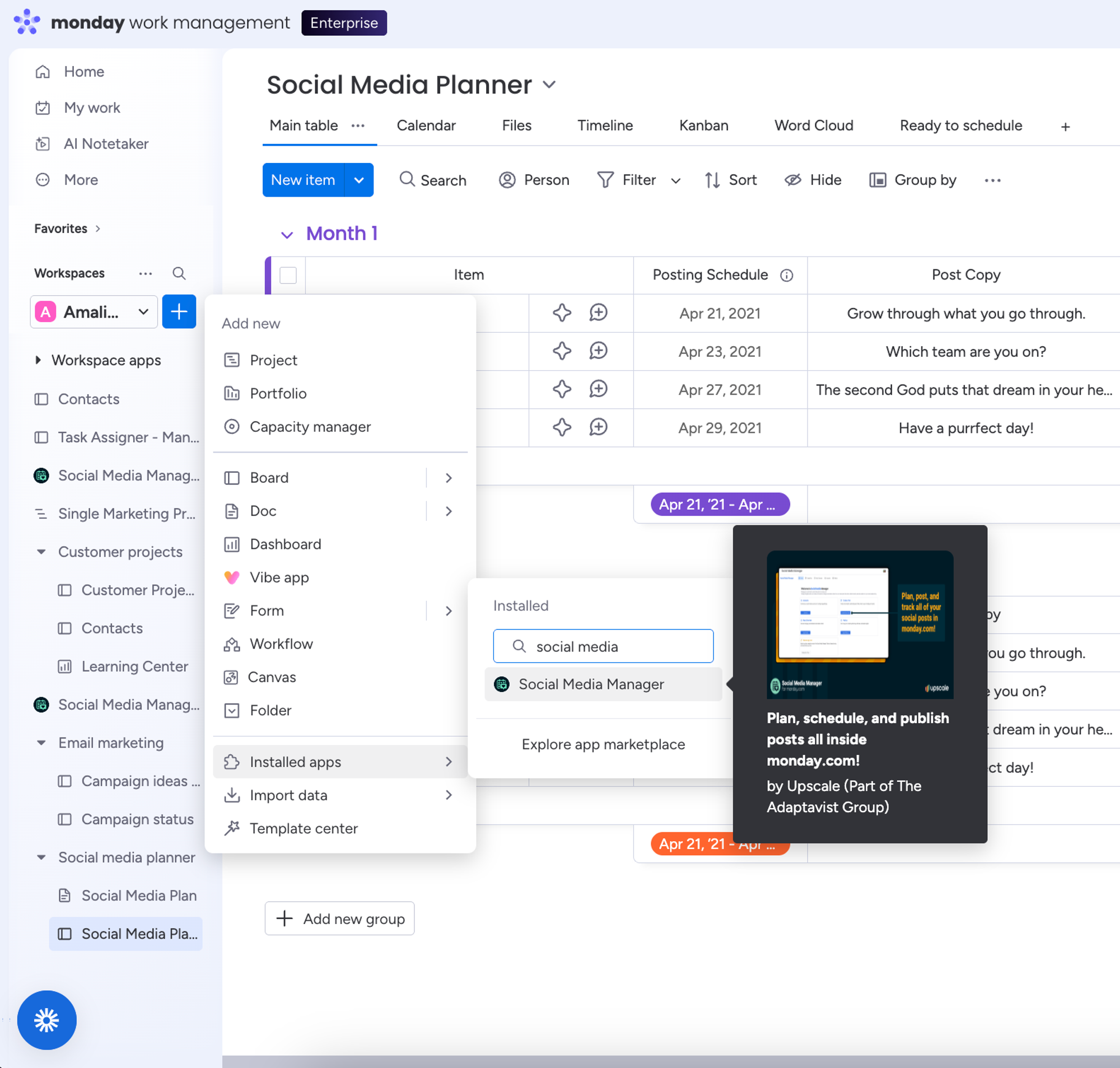
- Click the blue '+' button on the right-hand side under 'Workspaces' to open the drop-down menu.
- Then select 'Installed apps' at the bottom of the menu and search for Social Media Manager.
- Install the app, and you'll see it added to your workspace as a new board on the right-hand side.
Connecting your social media accounts
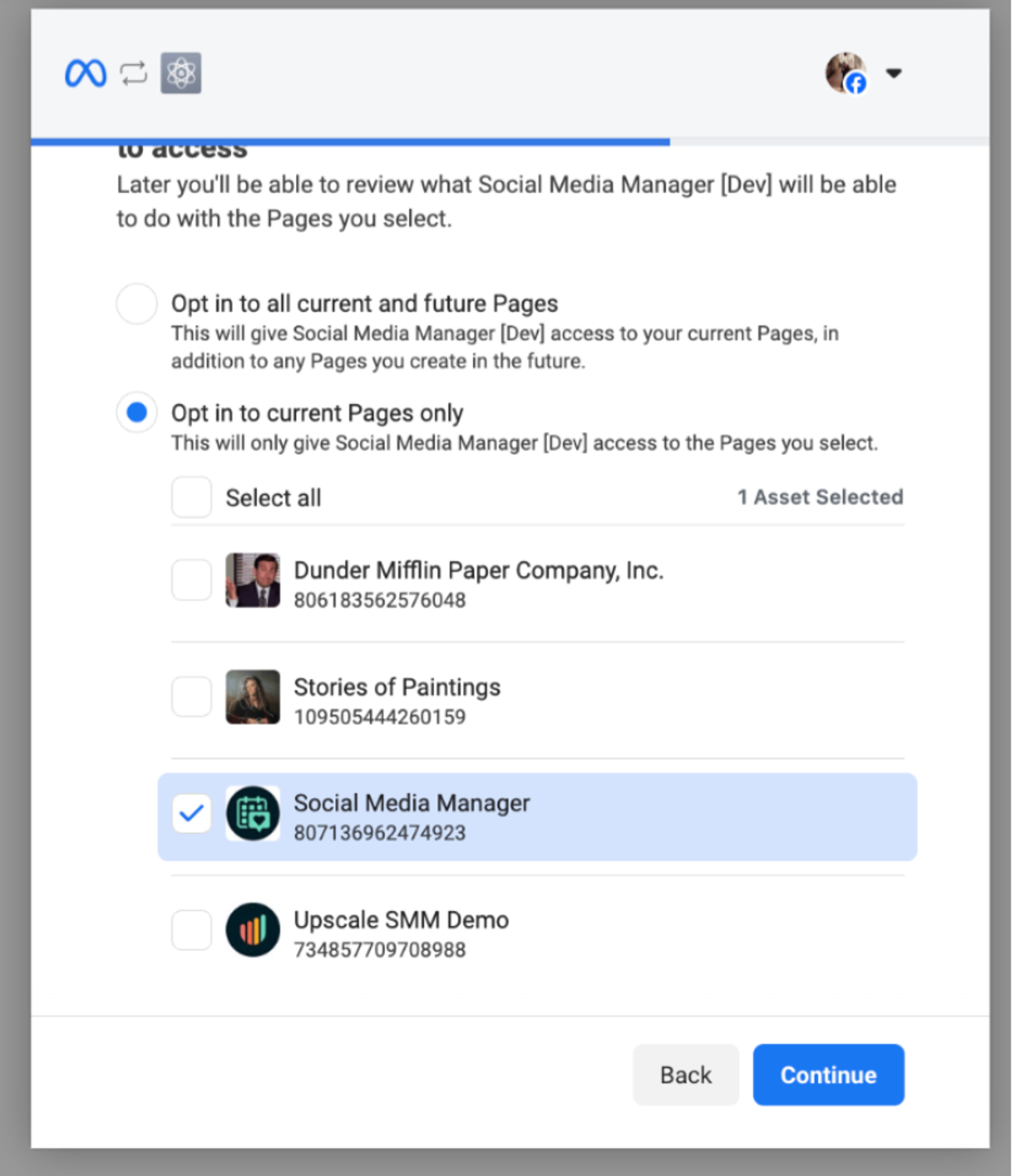
- Open the 'Accounts' tab and click 'Connect account' to link your first social profile.
- Select the social media platform you want to connect to.
- Follow the connection steps, then click ‘Save’ to confirm and grant permissions to Social Media Manager.
Choose the pages you'd like to connect and click 'Finish connection' to complete the setup.
Creating and scheduling a social media post
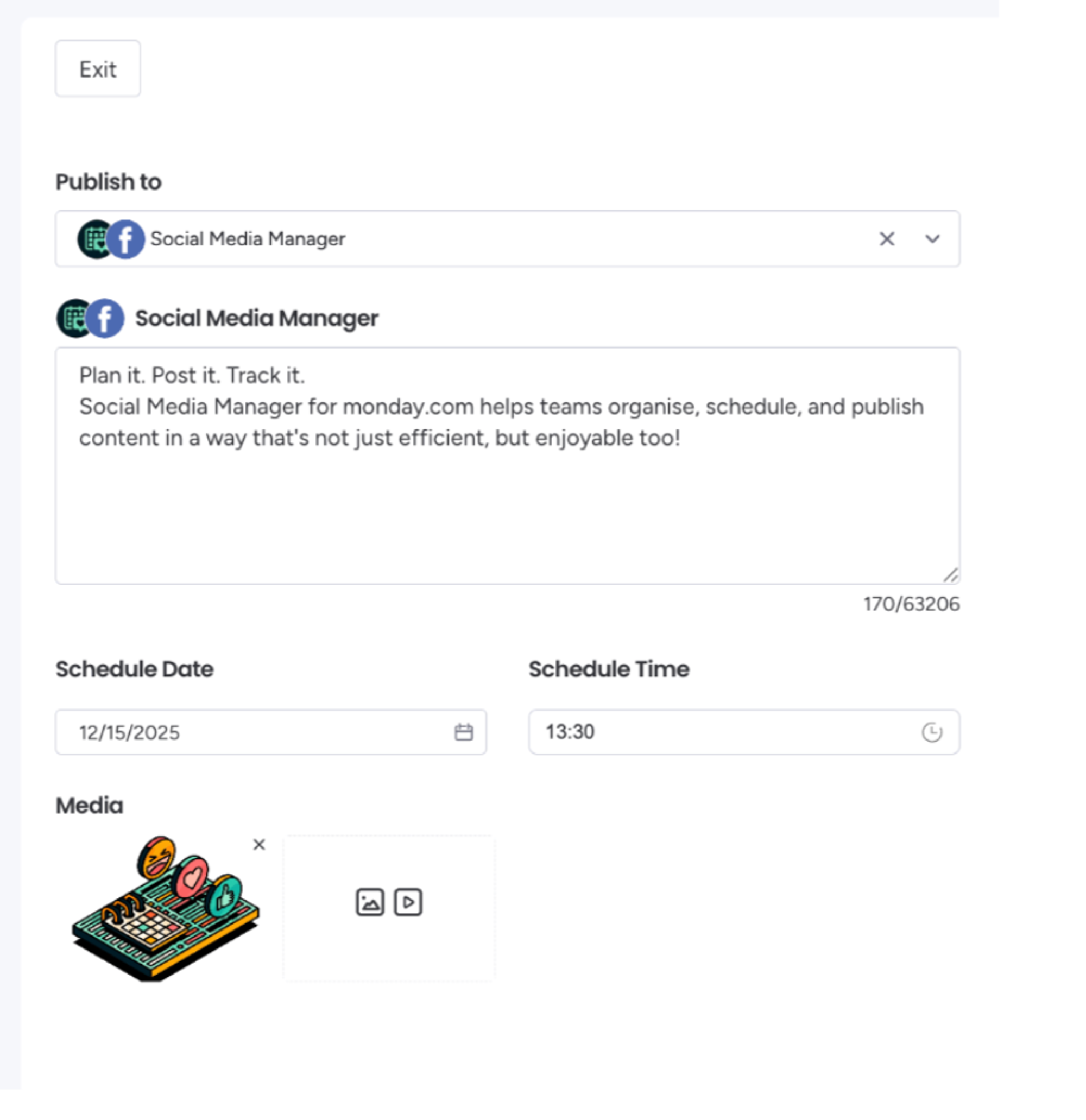
- Open the ‘Create Post’ tab and select ‘Create a post’.
- From the drop-down menu, choose the page or account you want to publish to.
- Add your caption and media.
- To schedule the post, set the date and time. If you'd rather publish immediately, leave the schedule blank and click 'Post now'.
- Once created, your post will appear under the 'Recent posts' tab.
If you don't want to post right away, you can save your post as a draft. It will be stored in the 'Recent Posts' tab for easy access later.
Tracking metrics and post performance
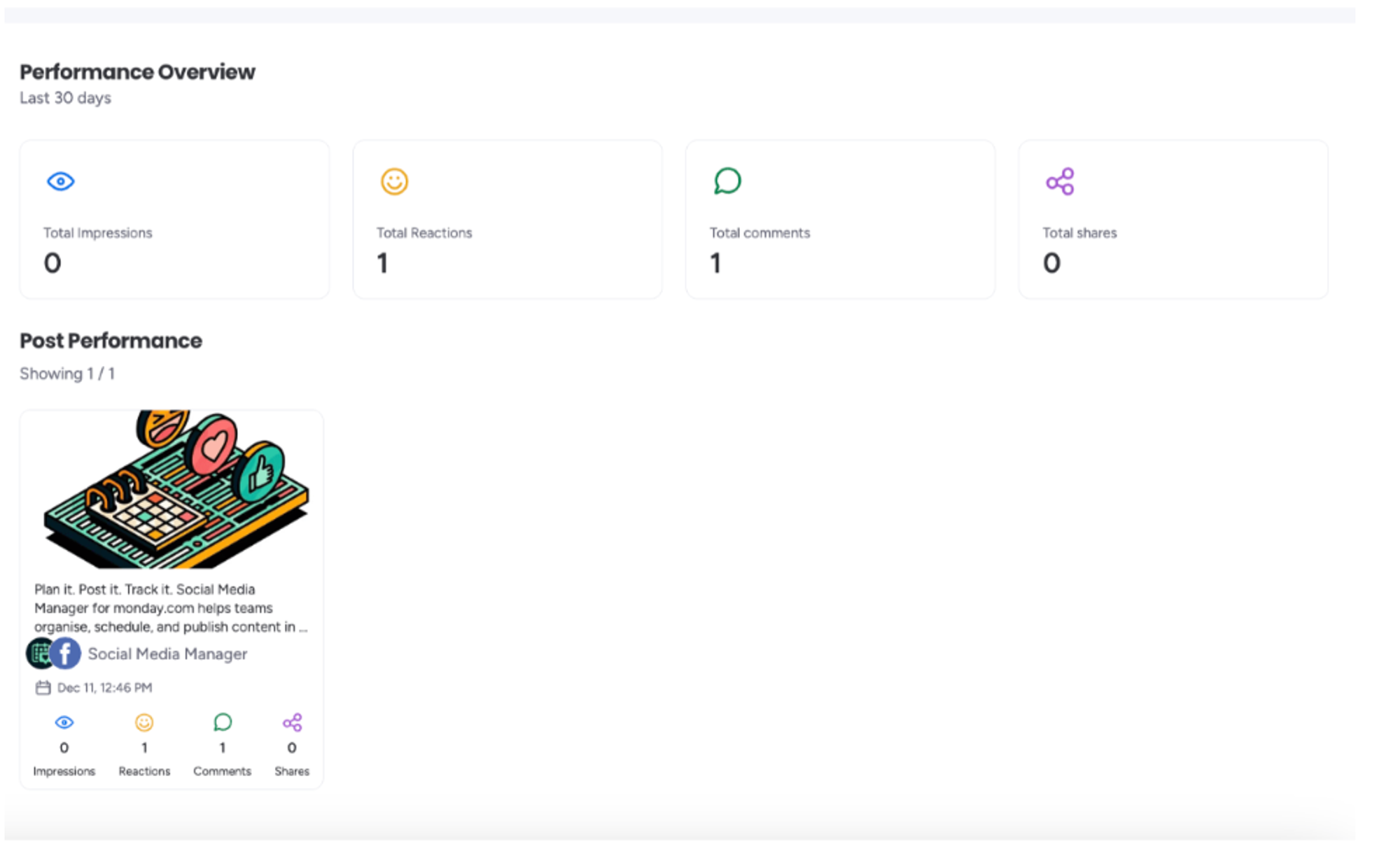
- Open the 'Metrics' tab.
- The performance overview displays insights for all your posts across every connected page and account over the past 30 days.
- In the ‘Post Performance' section, you can view detailed metrics for each individual post.
Social Media Manager for monday.com: next steps
That's it! You now know how Social Media Manager for monday.com helps teams plan, organise, and publish social content with absolute clarity.
Make sure to visit our hub page for Social Media Manager on the Upscale website for how-to videos, FAQs, and resources to help your team hit the ground running.
Finally, if you'd like to share feedback on the app or have questions, just reach out, our friendly team at Upscale is always happy to help.
Creating content workflows in monday.com your team will love using? #Done
FAQs
Which social platforms does Social Media Manager support?
You can plan, schedule, and publish content to LinkedIn, Instagram, and Facebook directly from your monday.com boards.
Can I schedule posts in advance?
Yes. Social Media Manager lets you schedule posts across LinkedIn, Instagram, and Facebook directly from your monday.com boards, so your content calendar stays clear and reliable.
Can my whole team collaborate on content?
Yes. Social Media Manager is built for collaboration. Your team can draft copy, leave comments, request approvals, and track progress together, all within the same board.
Do I need to leave monday.com to publish posts?
No. Once your content is approved and ready, you can publish directly from monday.com without switching tools or copying content between platforms.
Who is Social Media Manager best suited for?
It's ideal for social media managers, marketing teams, and anyone responsible for planning and publishing content who wants a clearer, more connected way to manage social work inside monday.com.
Ready to plan, schedule, and publish social content from inside monday.com?
Start your free 14-day trial of Social Media Manager for monday.com today, and give your team full campaign visibility, from draft to publish.
Written by
SOCIAL MEDIA MANAGER FOR monday.com