Still piecing together Jira project timelines from multiple tabs and screenshots? We've got some news that's about to make your day. Hierarchy for Jira's new cross-project timeline is here!
Ever spent an hour clicking through countless Jira work items, manually piecing together due dates and blockers, all just to figure out if your project is actually on track? We feel your frustration!
Well, what if you could see your entire project timeline, complete with due dates, dependencies, critical tasks to complete, and key milestones, all in one place?
Now you can, with Hierarchy for Jira's brand-new cross-project timeline view!
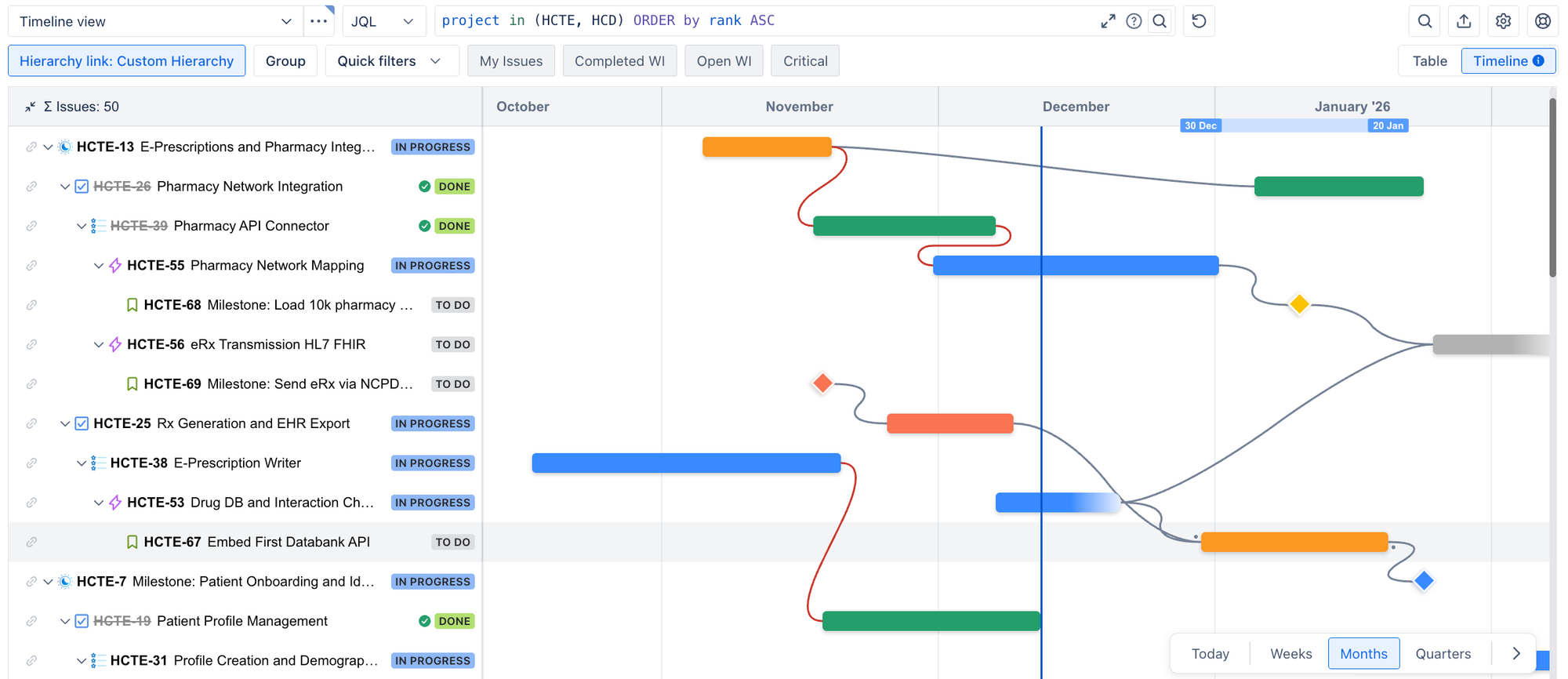
See everything happening across your Jira projects with the cross-project timeline view
We're excited to share a shiny new feature we've just added to Hierarchy for Jira: a powerful
cross-project timeline!
It instantly transforms your existing Jira project data into Gantt-style timelines, all within your existing Hierarchy for Jira app.
The timeline view complements your custom hierarchy views with a way to get even clearer visibility into everything happening, across one or multiple projects, in a single unified view.
The new timeline is included with Hierarchy for Jira by default. No costly add-ons, no configuration headaches, and no three-month setup process!
Whether you're managing a product launch across multiple teams, coordinating a complex development sprint, or explaining to leadership why "two weeks" turned into four, the new project timeline gives you enterprise-level visibility without the enterprise-level complexity or price tag.
Already a Hierarchy for Jira customer? Then you'll see it live, available to use in the app today! Haven't tried Hierarchy for Jira yet, but interested in seeing the timeline for yourself? Then
start your free 30-day trial to try it out in your own Jira instance!
Step-by-step: how to use your new cross-project timeline
Our new timeline view pulls in every work item from your existing
custom hierarchies and shows them on your timeline. If you update a work item from your timeline, custom hierarchy, or native Jira, it updates everywhere automatically, so you're always in sync.
Here's how you can start seeing the benefits of the new timeline in your project management workflows:
1. Drag to reschedule dates without opening a single work item
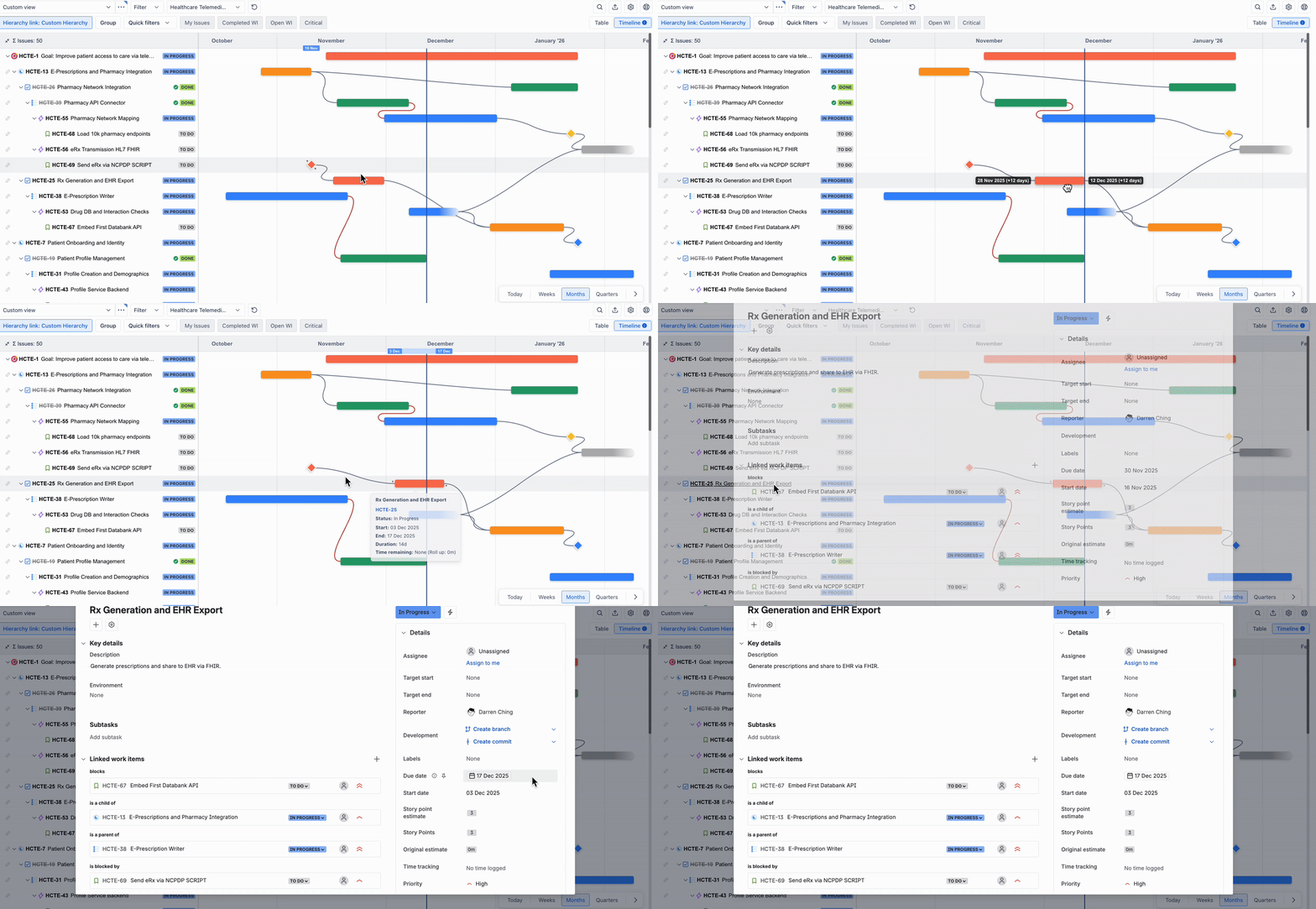
Need to push back a deadline by two weeks? Drag the timeline bar, and the underlying Jira work item updates instantly. Your whole team sees the change immediately, and you don't have to click into individual work items to make edits.
Drag-and-drop timeline bars to reschedule due dates
2. Hover for context (without opening 15 tabs)
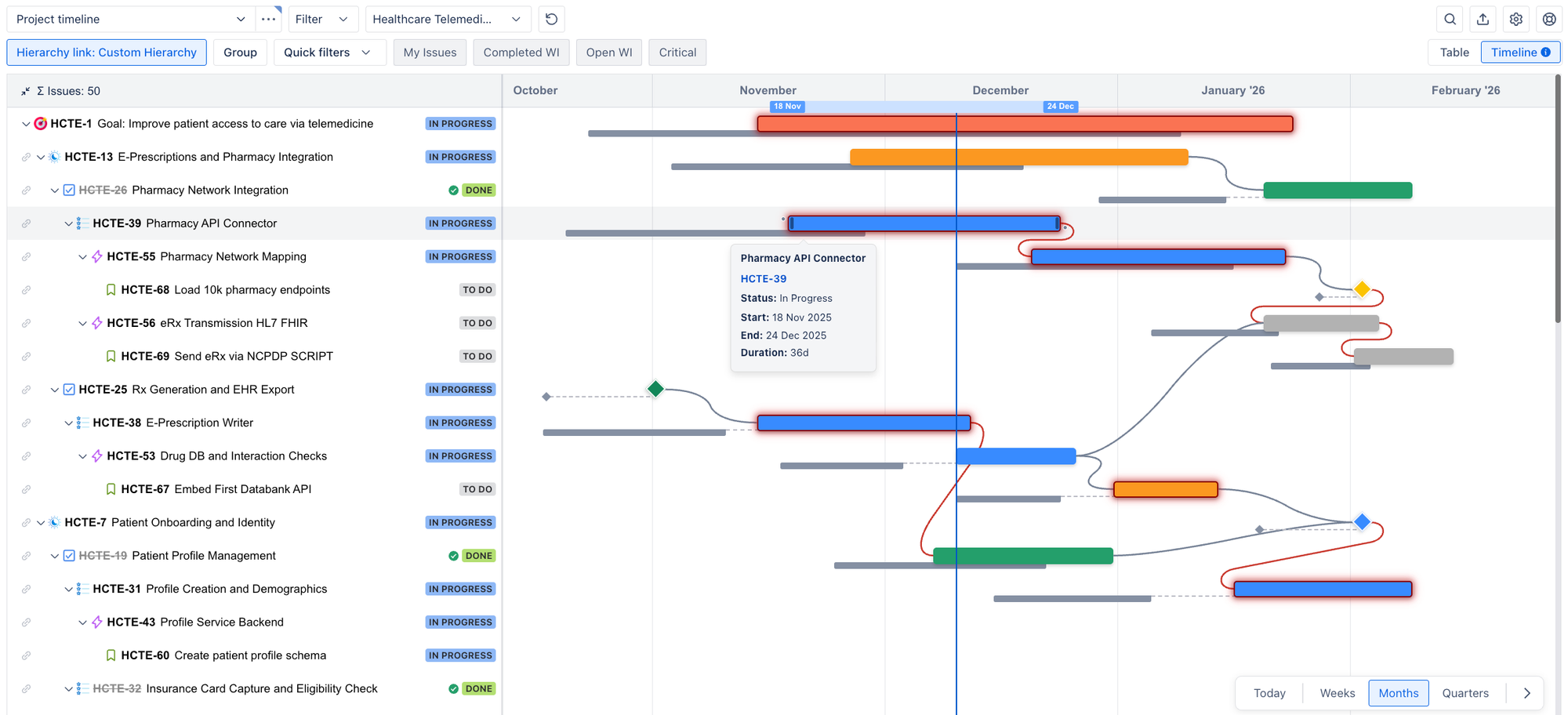
Move your cursor over any timeline bar to see status, start date, end date, and custom fields like total story points, time tracking fields, or other progress estimate metrics that make sense for your team and project.
Hover over a timeline bar to see key details about that work item
It may look like a small thing, but it means you can get the information you need, without opening fifteen different tabs or losing your train of thought mid-planning session.
3. See what's blocking what with dependency lines
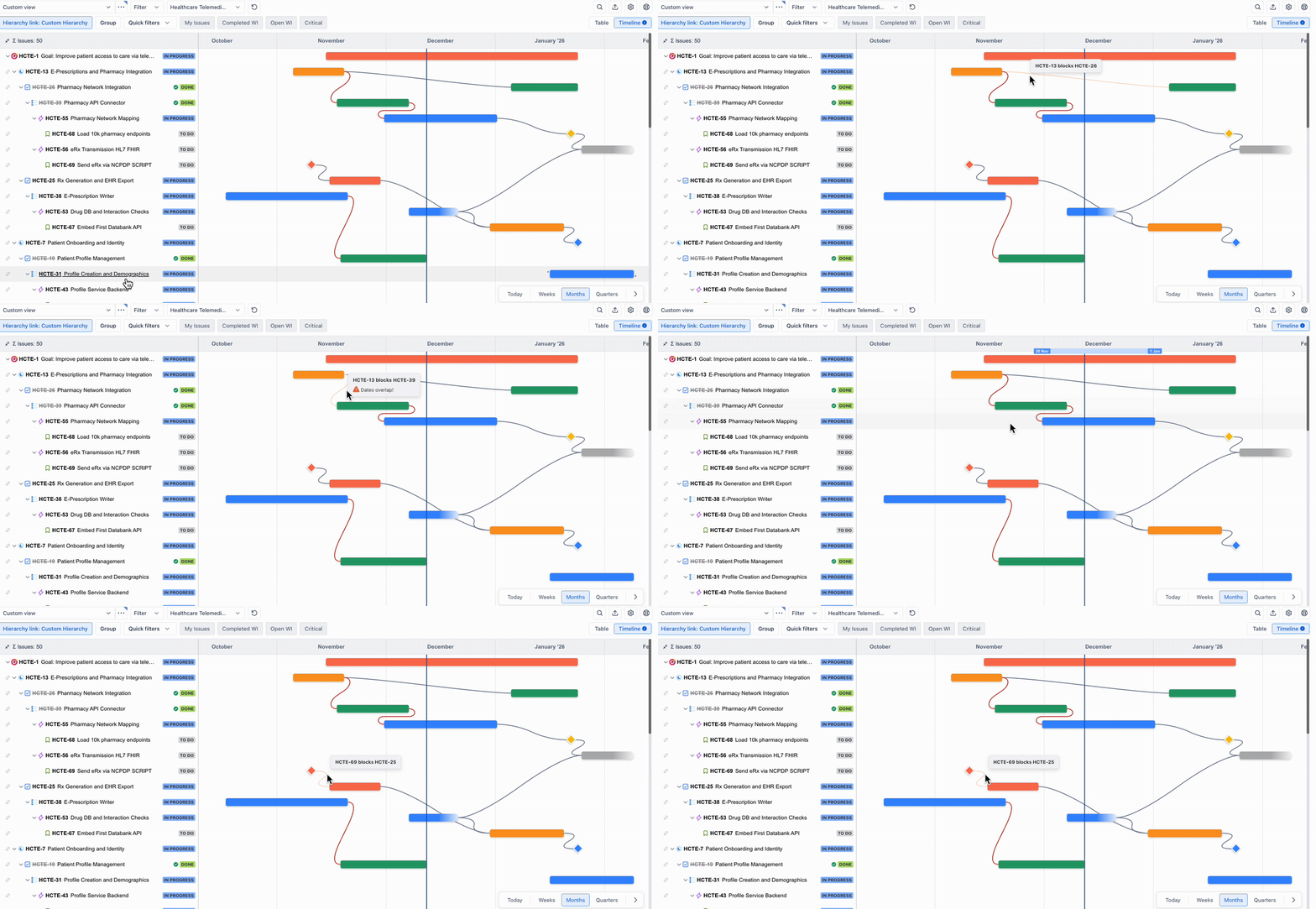
When one work item blocks another, a connecting line appears on your timeline. You'll see exactly what's blocking what, whether it's date overlaps or team members being double-booked.
It's a simple but powerful way to reduce mid-sprint surprises and get more clarity into your network of
task dependencies throughout the delivery process.
See dependencies at a glance with lines and hover over for details
You can also draw dependencies directly on the timeline, which reduces the need for context switching between views and work items throughout the day.
4. Align around key milestones (and see when they're at risk)
Milestones are visual markers on your timeline for important checkpoints: delivery deadlines, stakeholder reviews, or external dependencies.
Adding milestones to your timeline is easy:
- Right-click on a work item and choose 'Add milestone'.
- Colour code your milestone to match your needs.
- Draw lines linking milestones to dependent tasks.
- If a link task slips behind, the milestones turn red automatically
Shiow key milestones with diamond icons on the timeline
We recommend adding milestones as soon as you know your key dates. It gives your team context on why they're completing tasks, and it helps leadership assess progress at a glance, without asking you to build that report again!
5. See exactly how far you've drifted from the plan with baselines
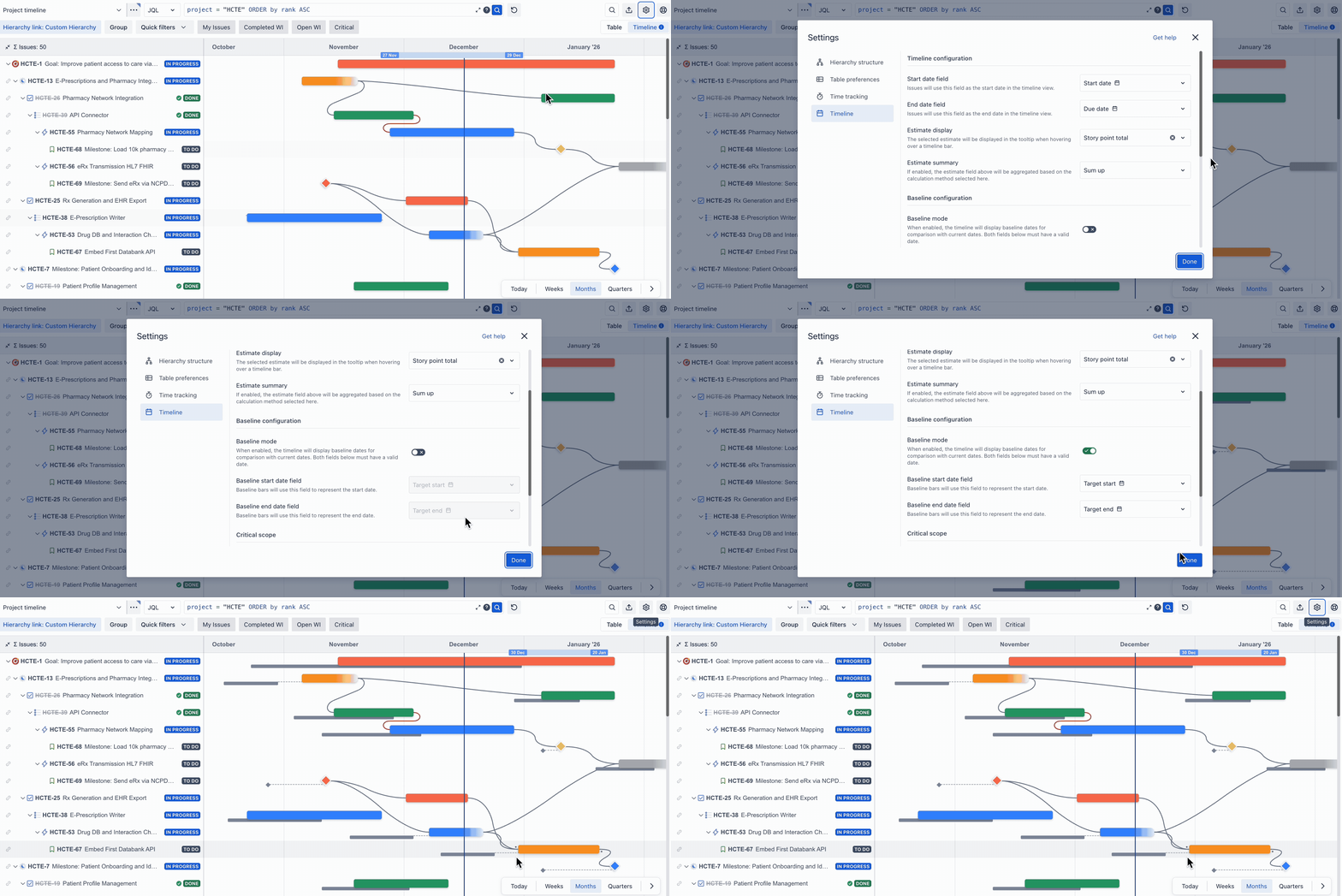
A baseline captures your original target dates: when you thought a task would start and end. The baseline then shows you the gap between planned and actual progress.
To use baselines:
- Set a target start/end date when creating work items.
- Enable 'Baseline mode' in your timeline settings.
- Grey bars will appear under work items, showing your original planned dates.
- Dotted lines show how much work has drifted from your plan.
Use baselines to see how far tasks have drifted from your planned dates
If you're mid-project, baselines help you identify which tasks are drifting so you can course-correct.
If you're reporting to stakeholders, baselines give you a visual way to show why certain things are behind schedule (and spark more productive conversations about blockers or resource needs).
6. No more surprise delays thanks to critical scope
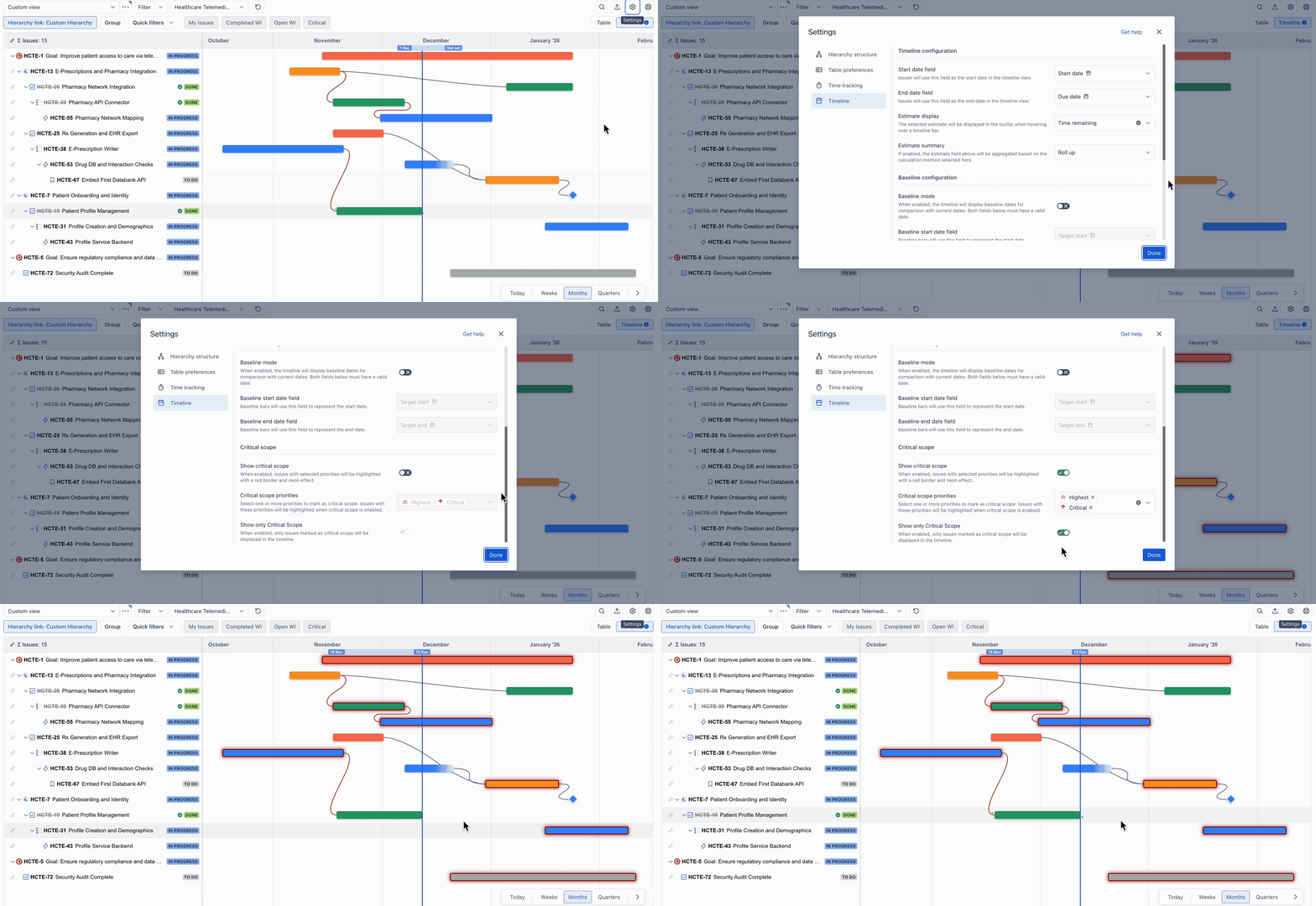
The critical scope feature lets you flag high-priority work that could jeopardise delivery if delayed. It works based on the fields you already use in Jira, so no complex dependency formulas are needed to get started.
Here's how to use it:
- Enable 'Critical Scope' in the timeline settings.
- Select which priority levels to flag (e.g., 'High', 'Major', 'Critical').
- Flagged items display with a red glow on the timeline.
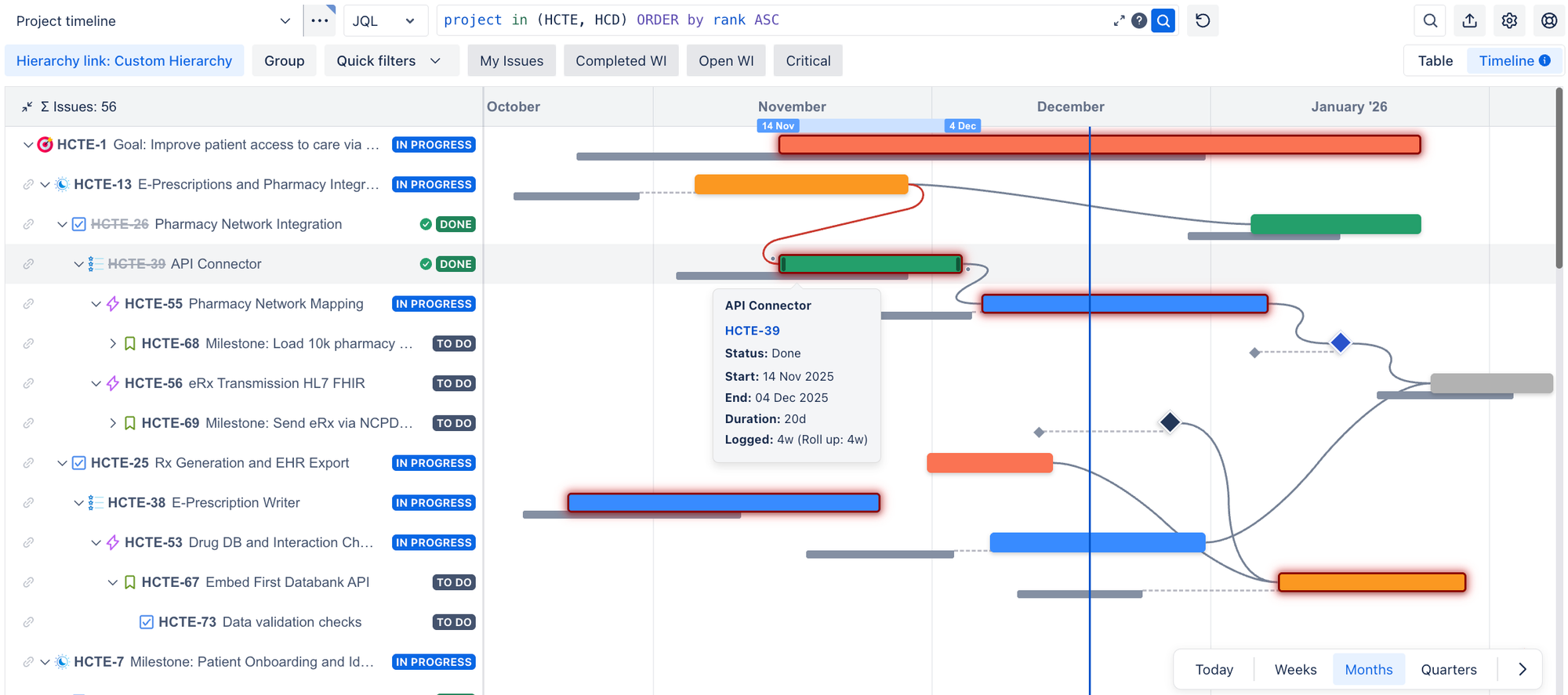
See critical work items highlighted with a red glow
In a busy timeline, critical scope gives your team an instant understanding of what to prioritise. Individual contributors can focus on the right work at the right time, and project or
portfolio managers can keep a keen eye on tasks that could derail everything if they slip.
7. Share progress with a link or image instead of rebuilding that report again
You can generate a shareable URL to your timeline view that always shows real-time status. It respects your existing Jira permissions, so people only see what they're authorised to view.
It's perfect for allowing stakeholders to self-serve reports whenever they want, meaning you get fewer "quick question, how's the project going?" messages throughout the week. Everyone wins!
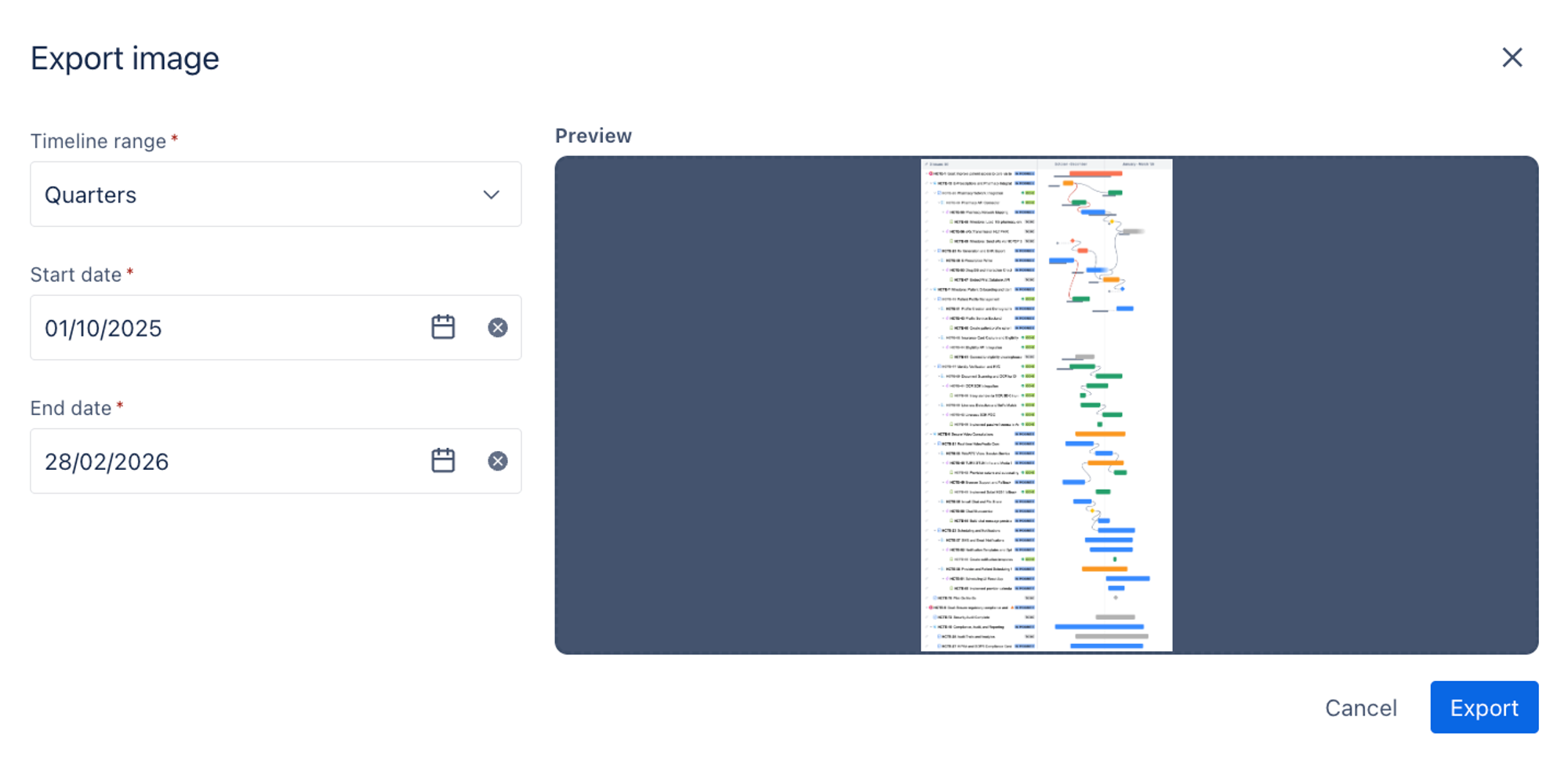
Choose your start and end date then export a snapshot of your timeline
If you'd rather share an image, we've got you covered: you can instantly generate a PNG snapshot of your timeline, ready to drop into a deck or Slack channel.
See your new cross-project timeline in 60 seconds
If you're already using Hierarchy for Jira, you can start using the timeline immediately:
- Open your hierarchy view: navigate to any project and click the Hierarchy for Jira tab (or find it in Jira's left-hand navigation).
- Switch to the timeline tab: look for the 'Timeline' option at the top right of your Hierarchy for Jira view.
- Customise what you see: choose which date fields to display and what details show up when hovering over timeline items.
- Start planning visually: drag timeline bars to adjust schedules, hover for details, see dependencies as connecting lines, add milestones, and highlight critical work!
- Share with your team: generate a shareable URL for stakeholders or export as an image in seconds.
And that's it! You're ready to start planning, tracking, and managing projects with more visibility than ever before.
No expensive upgrades, no complicated setup: start using it today
The big question: is it included in your existing Hierarchy for Jira licence? Yes! The new timeline view is now available to all Hierarchy for Jira customers and users at no extra cost.
It slots right into your existing Jira and Hierarchy for Jira workflow:
- No expensive upgrades required: the timeline view is included with Hierarchy for Jira at no extra cost.
- Native Jira Cloud experience: everything happens within your familiar Jira environment. No context switching or new tools to learn.
- Flexible hierarchy support: works with any custom hierarchy you've already built, whether you have initiatives above epics, features between epics and stories, or any other custom Jira project structure.
- Real-time sync: changes in the timeline update your Jira work items automatically, and vice versa.
- Enterprise-ready: built on Atlassian Forge, which means it'll handle whatever level of scale you throw at it.
- Cross-project visibility: see as many projects as you need in one timeline, without needing to create custom scripts or upgrade your Jira version.
The new timeline makes it even easier to see the connections between work, track progress against goals, and communicate status to stakeholders.
Try the new timeline in Hierarchy for Jira today!
You can try out the new timeline in Hierarchy for Jira right away. No separate installation, configuration, or paid add-ons required.
New to Hierarchy for Jira? Start your free 30-day trial and discover how the power of a custom hierarchy, combined with the brand-new timeline, can bring clarity to your project management today.
Ready to get started?
Ready to try the new cross-project timeline? Start a free 30-day trial of the app on the Atlassian Marketplace!
Prefer a chat first? Get in touch with our team via the button below, and let’s talk!