Social Media Manager is now available in your monday.com items, and we've added five blocks to monday.com's workflow builder. Here's what's new, and how to put it to work.
You asked for
Social Media Manager to sit closer to your monday.com boards. We listened, and you may have already noticed that we've released two big updates to the app. We're excited for you to try them!
The first big update is that you can now write and schedule posts straight from your monday.com item view (full walkthrough below).
Second, you can now integrate Social Media Manager into your custom monday.com workflows. Whether you're an in-house marketing team or an agency running social for several clients, you'll have more oversight into your planning, your upcoming schedule, and what's been published.
Both updates are live now in the app!
What's new in Social Media Manager for monday.com?
1. Post to social media right from your monday.com items
Social Media Manager now opens directly inside your monday.com items, meaning you can draft, schedule, post, and review, all without leaving your board.
Your post editor sits next to all of the key context around your post, making it easy to refer back to your campaign details to ensure you craft the perfect post.
2. Build your own social workflows
Social Media Manager now brings its own steps to monday.com's workflow builder. A workflow is a series of steps that runs when something happens on your board, such as a status change or a date arriving. Think: if this, then that.
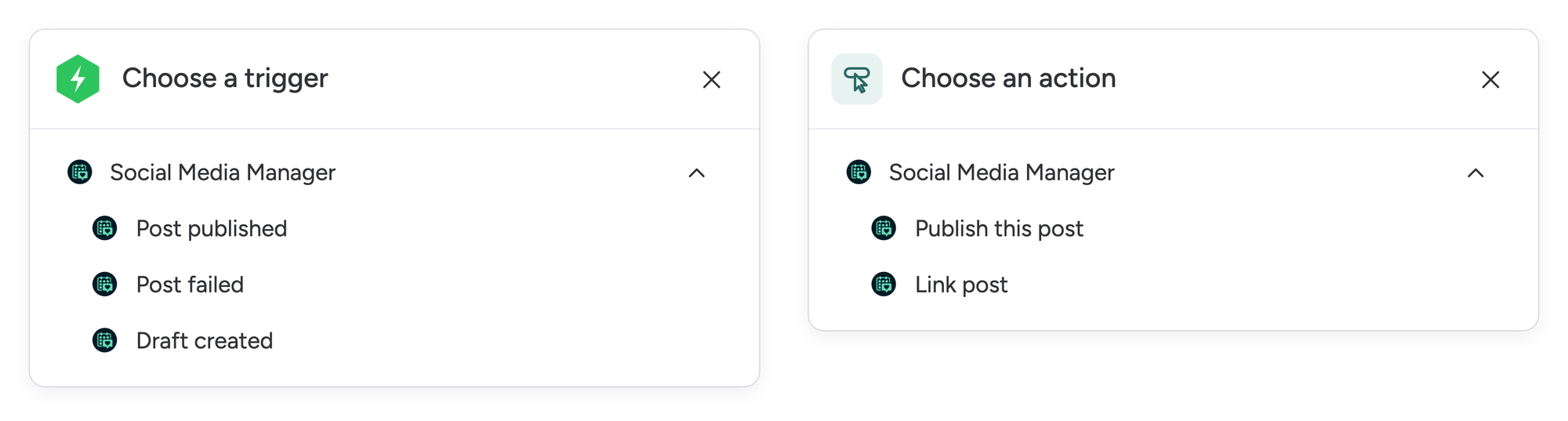
We've added three new monday.com workflow triggers, and two new actions that you can bring into your workflows.
Connect publishing to your item statuses, add a step that updates your board when a post goes live, and let your tools handle the busywork while you focus on coming up with new content and campaign ideas!
That's the short version, so if you want to dig into the details, read on for a step-by-step walkthrough of the new features!
Update 1: schedule posts right where you plan them
Your monday.com item already holds key information like your caption, creatives, and the publish date. Now, you can open the item, check everything looks right, and schedule the post from the same place. No more copying captions into another window, or having to fish through long lists of campaign updates to find your post creative.
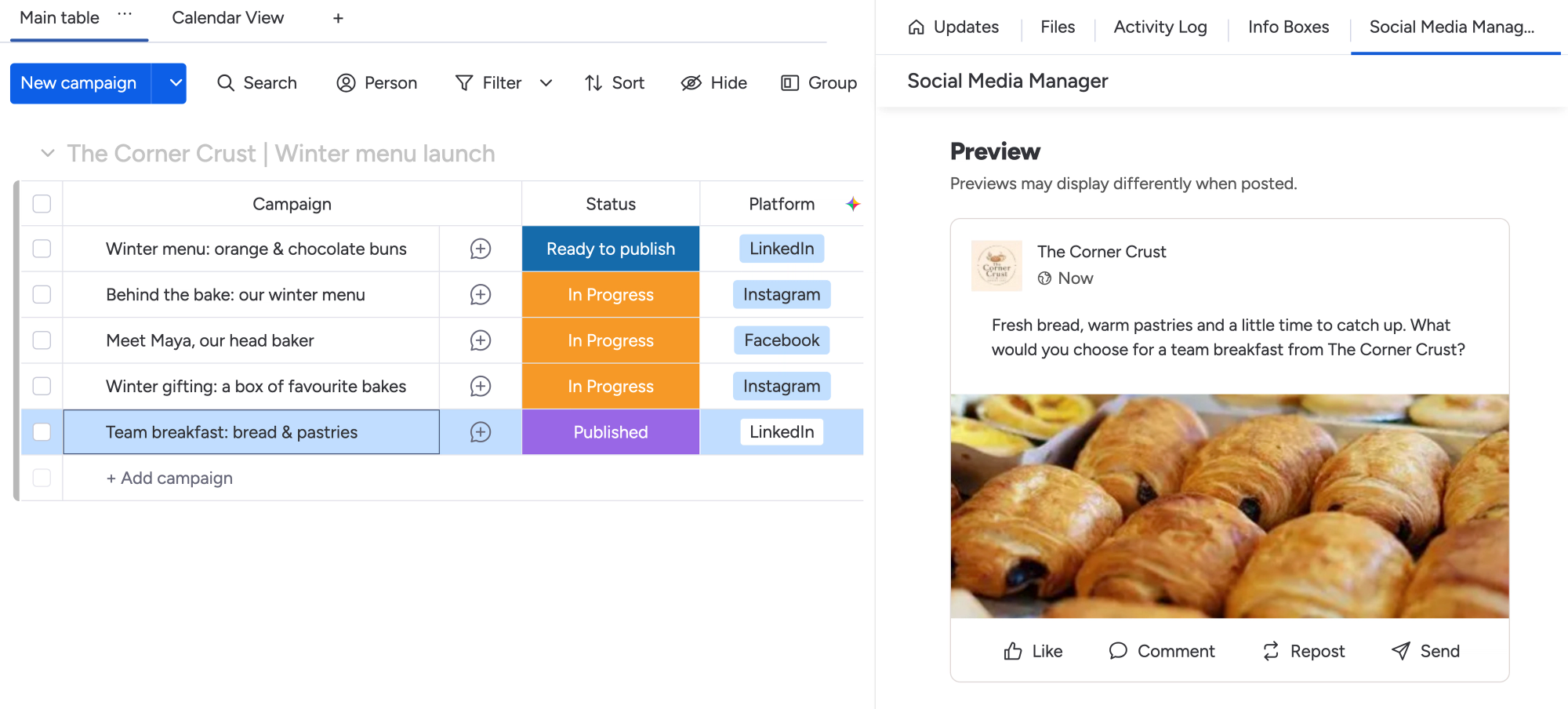
Take The Corner Crust, a bakery planning a campaign for team breakfasts. Its board has an item called Team breakfast: bread & pastries, with a LinkedIn caption and a bakery photo ready to go.
First, add Social Media Manager as a new view option:
- Open an item from your monday.com board.
- Click the + beside the item's tabs, then choose Explore more views.
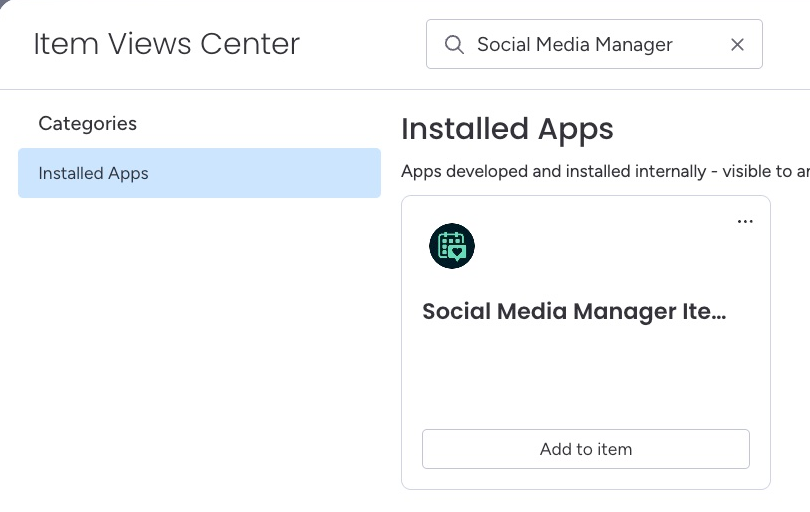
- Find Social Media Manager in the Item Views Center and add it to the item.
Once installed, Social Media Manager will appear in your Item Views Center
Once added, open the Social Media Manager tab, and you can now prepare your post right here, without needing to open the full app.
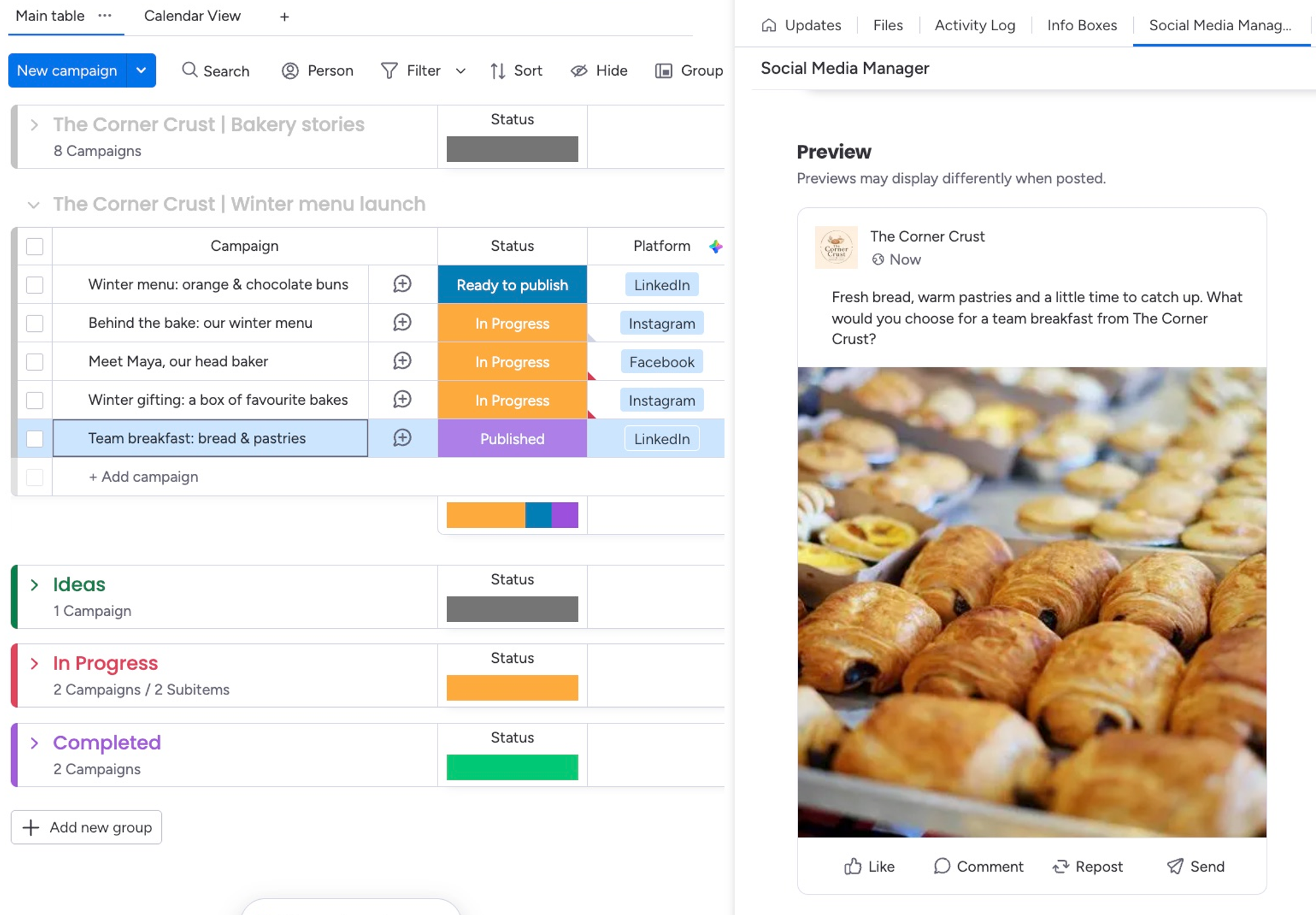
Keep the campaign board in view while checking the caption and bakery photo in the selected item's Social Media Manager tab.
Here's how the post gets from that item to LinkedIn:
- Open the item and the Social Media Manager item view tab.
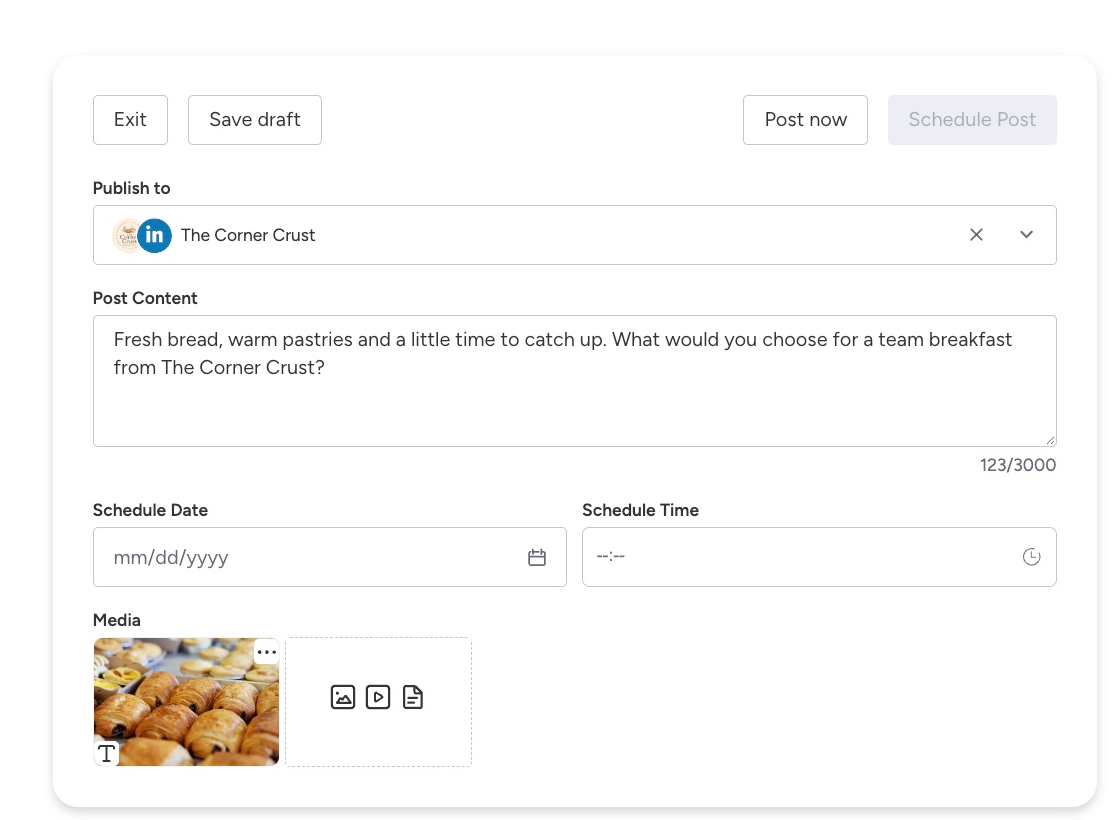
- Pick your page. We'll use The Corner Crust's LinkedIn Page. Each post goes to one account.
- Add the caption and the creative, with alt text, then check the preview.
- Save it as a draft, post it now, or schedule it for a future date.
Prepare the caption and add your photo and alt text without leaving the item.
When you want to step back and see your whole month of posts, switch to the full app. Your post list and calendar show every post in one place, whether it was written in the item view, or in the app.
Another handy feature of the item view is that a post created in an item is also linked to that monday.com item. The Publish this post action uses that link to find the right post.
Update 2: automate your social media management with workflow blocks
Whether you publish as soon as a post is marked ready, or go through multiple rounds of feedback between a writer and an account manager first, workflow blocks fit Social Media Manager into the processes you already have in place.
Social Media Manager now adds five blocks to monday.com's workflow builder:
- Publish this post (action): publishes the post linked to an item.
- Link post (action): links a post to an item.
- Post published (trigger): starts a workflow when a post goes out, and passes on its link and publish time.
- Post failed (trigger): starts a workflow when a post fails to publish.
- Draft created (trigger): starts a workflow when a draft is created.
Not sure how you could put these to use?
Here are a couple of example social media workflows in monday.com to get you started.
1. Publish when the item's ready, then mark it as published
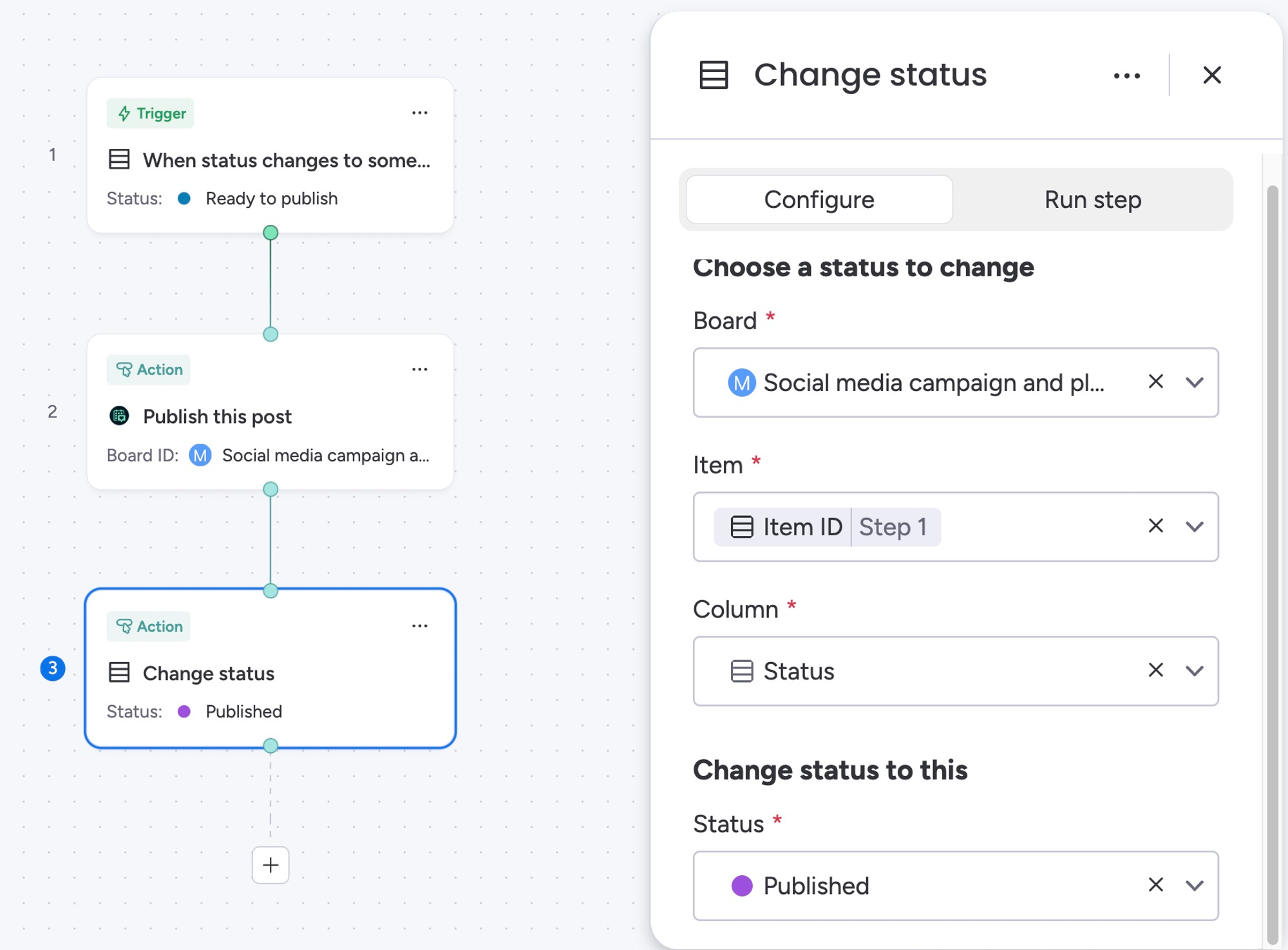
Workflow: When status changes to Ready to publish → Publish this post → Change status to Published
Move an item to Ready to publish and Social Media Manager publishes the post linked to that item. In the Publish this post step, set Item ID to the item from Step 1. That tells the app which item started the workflow, and the app publishes that item's linked post. Posts you create in the item view are linked automatically. You can link other posts with the Link post action.
If the item has no linked post, the workflow stops and Run history shows an error saying so, ensuring nothing goes out by mistake.
Add Change status as a last step and your board shows what's gone out, without anyone updating it by hand.
The workflow setup: status trigger, Publish this post with Item ID from Step 1, then Change status to Published.
2. Tell a colleague it's live
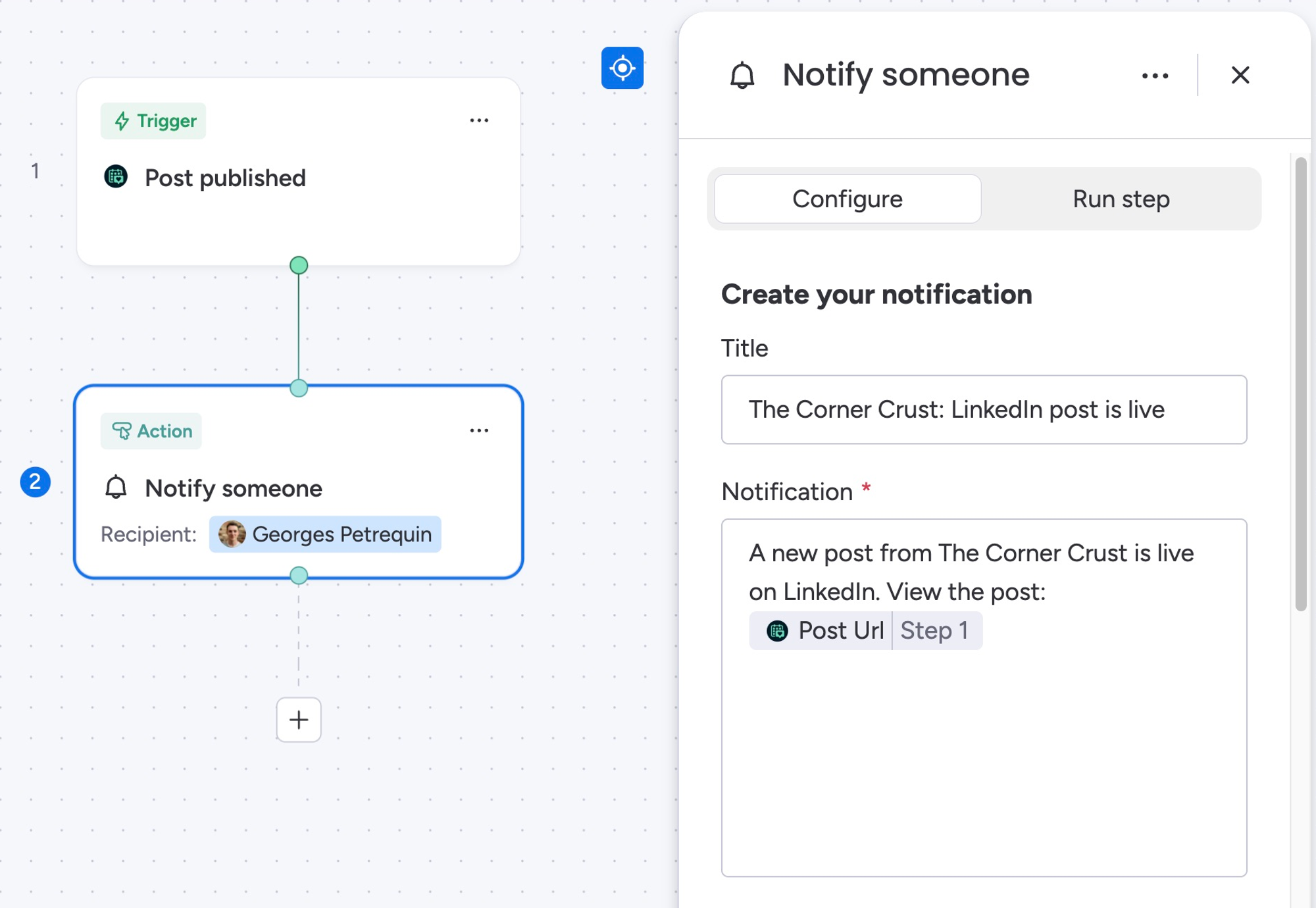
Workflow: Post published → Notify someone, with the post link
In this example, a post is published, then a notification workflow sends the person (or multiple people) looking after the account a link to the live post.
You can add a custom message, including elements such as the Post URL so someone can get the notification, then click straight through to the post, live on whichever platform it was published on.
It's a handy reminder to go and check the comments, or verify your post formatting looks good.
The workflow setup: Post published, then Notify someone, with the Post URL from the trigger added to the message.
Because our blocks sit right alongside monday.com's own triggers and actions, you can build any type of custom workflow you need. For example, you could publish when a date arrives instead of a status change, or move published items into their own group.
Schedule your next post from the item view
Open your next campaign board and add the Social Media Manager item view. Schedule one post from there, then switch over to the app's calendar and see it appear alongside your other posts. Once that works, add a Social Media Manager block to one of your workflows, and tie your social publishing even more closely to the rest of your marketing work in monday.com.
Is there a feature you'd love us to add next? Let us know!
Ready to manage your social campaigns from your monday.com boards?
Try Social Media Manager for free from the monday.com marketplace, or book a demo and we'll walk you through the new item views, workflows, and everything else the app can help you with!