Contact us
Jira has no field-level security. Here's how to add it
Share on socials

Jira has no field-level security. Here's how to add it

Georges Petrequin
Georges Petrequin
Published on 11 August 2026
8 min read
An illustrated Jira board with a selection of work items overlaid on top, some of which have masked custom fields, as well as a padlock and a check mark.
Georges Petrequin
Georges Petrequin
Published on 11 August 2026
8 min read
Jump to section
The four ways to restrict access in Jira
How to set up field-level security in Jira
1. Create your new protected custom field
2. Let specific user groups view your protected custom field
3. Check your field is hidden with a quick test
4. Track what happened in the audit log

Want to restrict one sensitive field in Jira without hiding the whole work item? Discover which access control fits your problem, and how to set up field-level security.

Here's a common scenario: there's a single sensitive value on a work item that the rest of your team needs access to. A salary field on an HR ticket, a contract value on a deal, legal notes on a case your delivery team is working on.
You don't want to hide the full work item, because the wider team is working on it. You just need that one value hidden from anyone who doesn't need to see it.
The problem: Jira Cloud has no native way to restrict a single field to certain users, so you're left with bad options: take the information out of Jira completely, or duplicate the work item, re-assign permissions at a work item-level, and split the work across multiple places.
Teams on Jira Data Center have used our app, Encryption for Jira, to solve this for years, but that setup can't be replicated on Cloud. So, we built Protected Custom Fields, a free app, to close the gap.
In this guide, I'll walk you through how to set up view and edit permissions on individual custom fields, so your team keeps collaborating, but with sensitive information only accessible to the people who need to see it.

The four ways to restrict access in Jira (and what each one covers)

Before configuring anything, make sure you really need field-level security. Jira gives you three levels of access control above the field level. If these aren't enough, then you'll have to use a Marketplace app (like Protected Custom Fields), to add a fourth level and restrict access to values on specific fields.
What you wantRight controlLimitations
Hide the whole work item from some peopleWork item security schemeHides everything on a work item just to protect one value
Control who can take specific actions in a space (formerly 'project')Space permission schemeCan't single out a field
Block a change at one workflow stepWorkflow conditions and validatorsStops edits to fields but doesn't hide anything
Control who can view or edit one fieldField-level access control (with an app like Protected Custom Fields)Requires you to install an app, but no limitations once installed
These layers of security controls complement each other, and you can use more than one at the same time. For example, just because you use Protected Custom Fields, doesn't mean you won't use work item security schemes as well.

How to set up field-level security in Jira with Protected Custom Fields

Because Jira Cloud doesn't offer field-level security natively, you need a Marketplace app. In this guide, I'll show you how to set it up, using our app, Protected Custom Fields (it's completely free!).
The app encrypts values in your protected custom fields with AES-256 (the digital equivalent of a combination padlock with 77 rotors), meaning the information is only viewable by people authorised by you. If someone opens a work item but you haven't given them permission to view the sensitive field, they won't see the value. As well as visibility controls, every action on your protected fields is recorded in an audit log.

1. Create your new protected custom field

Say you're protecting a Budgeted Salary $ field on a hiring work item. The HR team needs to see and change it. Everyone else who touches that work item, such as the recruiter, the interview panel, whoever sets up the laptop and accounts, should be able to work on the work item as normal without ever seeing the Budgeted Salary $ number. We'll use this example the whole way through.
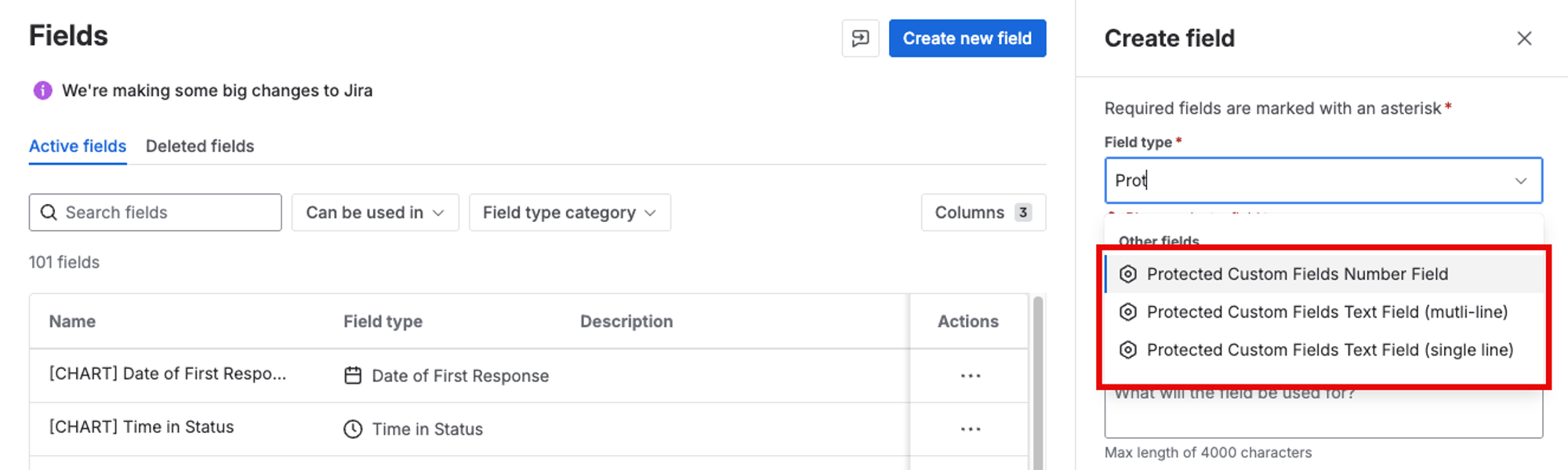
Once Protected Custom Fields is installed in your Jira instance, go to the cog icon → Work items → Fields → Create new field and pick a Protected Custom Fields type. For a salary, you'd use Protected Custom Fields Number Field.
There are three protected field types:
  • Number
  • Text (single line)
  • Text (multi line)
Create your new secure custom fields
Between them, they cover most of what teams need to protect.
Name your field, describe it, and create it. Then add it to the relevant field configuration, or it won't appear on your work items at all.

2. Let specific user groups view your protected custom field

By default, new protected fields have no user groups assigned.
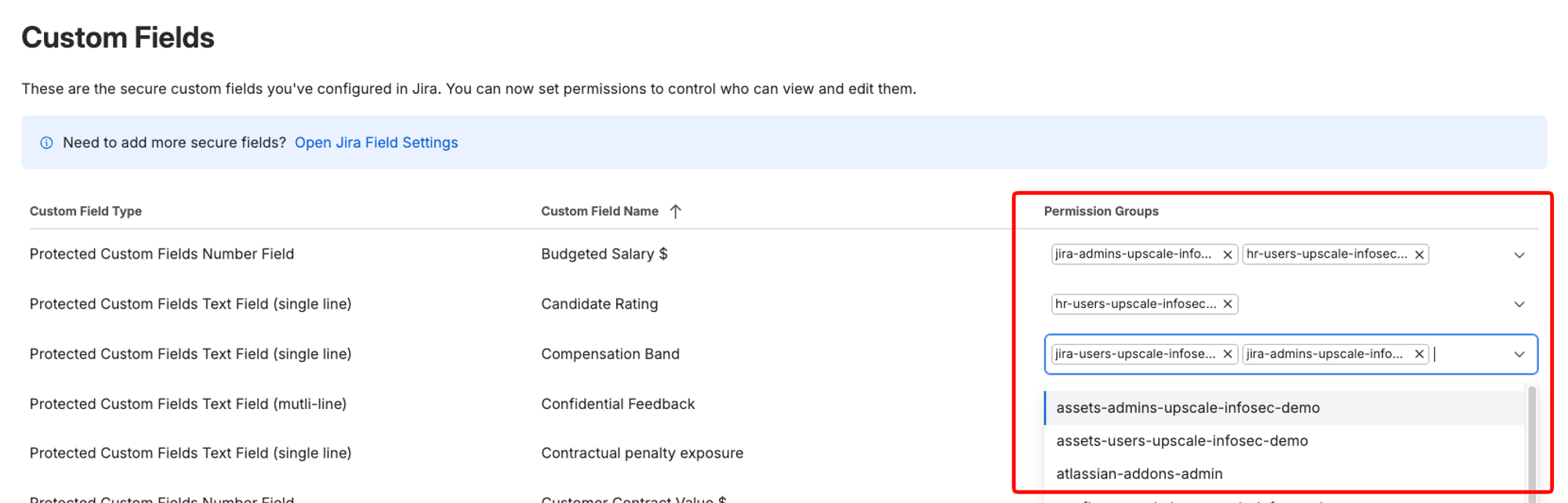
To assign your HR team to a protected custom field, open the field's permission settings and assign your group in the Permission Groups column. You can add as many user groups as you need to each field.
The Protected Custom Fields settings screen, showing permission groups such as hr-users and jira-admins assigned to each secure field.
And that's it—your field is secure!
Your HR team can now view, edit, and remove the salary. Nobody outside that group can see it, and everyone keeps working the same work items as before.
If a team member leaves the company, or gets removed from your HR group for any other reason, their access to every protected field assigned to that user group is removed with it. No updates required from your side.
When someone joins the company and is added to that user group, they automatically get access to all of the protected fields their group is assigned to.
By design, until you assign a user group to a protected field, nobody can see the value (including you). So, if you create a field and can't read your own test data, that's why. A simple way to test this yourself is to create a custom user group just for testing, comprising of you (or whoever is setting up the app) so you can run limited tests before rolling our your field security across your Jira instance.

3. Check your field is hidden with a quick test

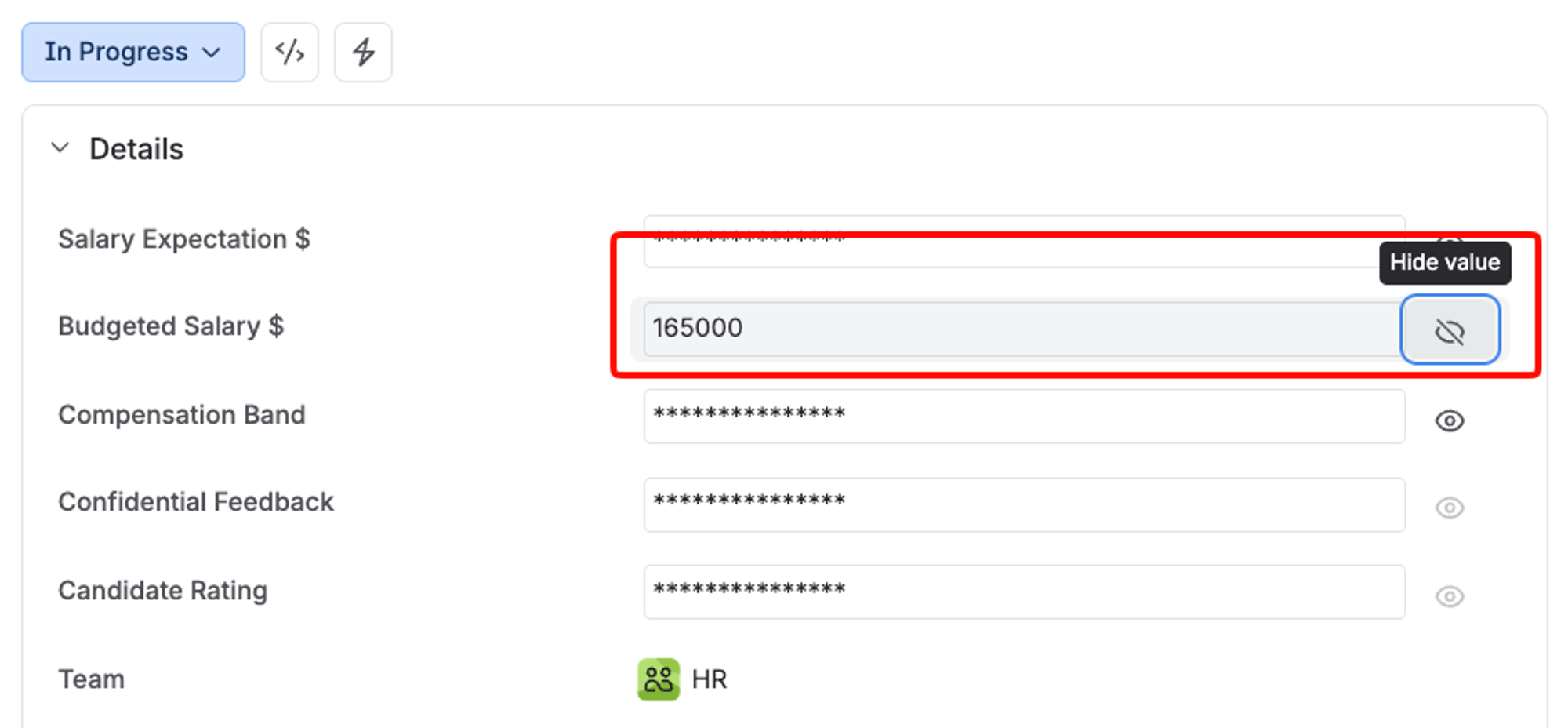
Open a work item as an HR user. The value shows as asterisks with an eye icon beside it. Click the eye icon to reveal the number, edit it if you need to, and click the tick to save.
A Jira work item where a permitted user has revealed the Budgeted Salary value of 165000, while the other protected fields stay masked.
An empty field reads ‘None’.
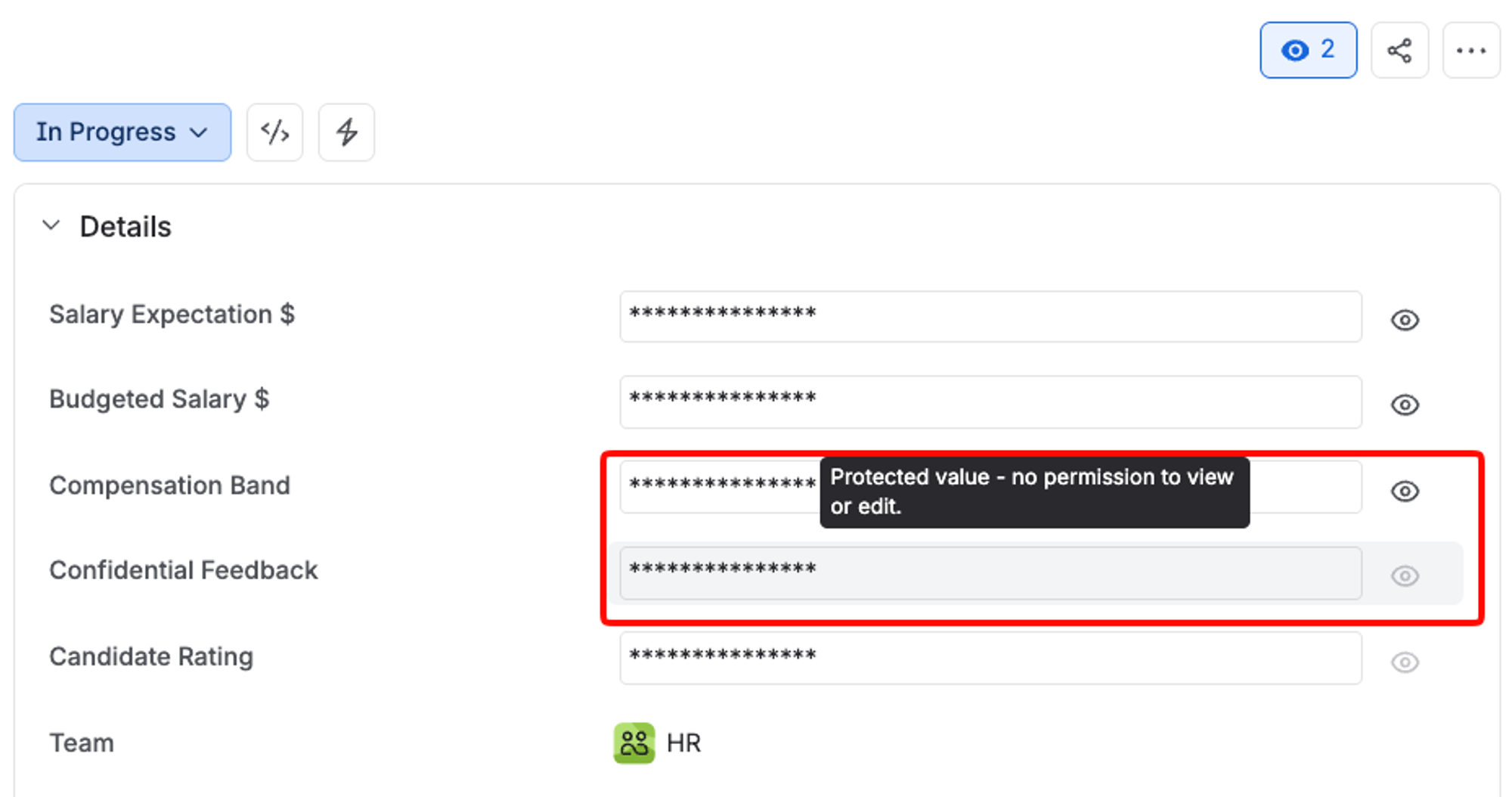
Anyone without access sees the asterisks too, but the eye icon is greyed out and won't reveal anything when clicked. Hovering over it explains why: protected value, no permission to view or edit.
Everything else on the work item behaves normally. They can comment, make edits to fields they have access to, and do everything else available to their user group, exactly as before.
The same Jira work item seen by a user without permission. Every protected value shows as asterisks, with a tooltip reading "Protected value - no permission to view or edit".
Permissions are set per field, so one work item can carry multiple types of protected fields, with different people able to see each. In the screenshot above, the same person can see the top three fields, but the bottom two are greyed out so they won't have access.
It's easy to verify this for yourself.
Take one person out of your HR group with access permissions, and ask them to open a work item with a field they don't have access to. Confirm the eye icon does nothing for them. Then, put them back and confirm the value returns. It takes just two minutes and it's the evidence you'll want when your compliance officer or an auditor asks how you know the field is protected.

4. Track what happened in the audit log

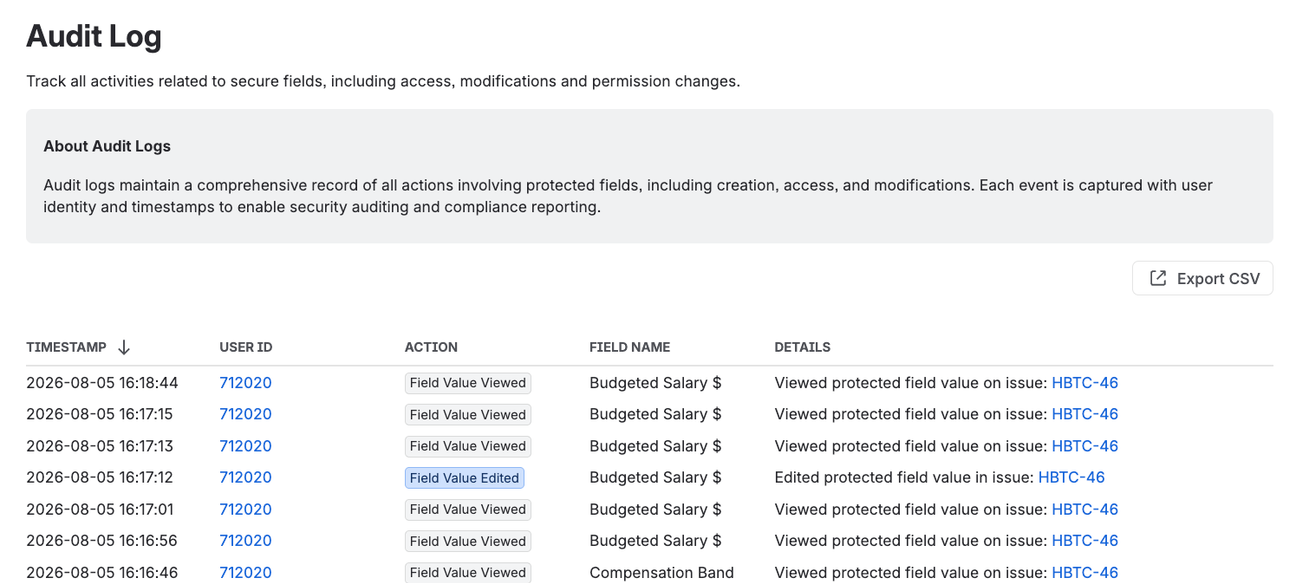
Open the audit log and you'll see everything you just did: the field you created, the group you granted access to, and every instance of the secure field being viewed, edited, or deleted.
Each entry in the audit shows the timestamp, the user ID, the action they took, which protected field was impacted, and the work item it happened on. You can export the whole log to CSV for deeper queries, too.
The Protected Custom Fields audit log, listing timestamped Field Value Viewed and Field Value Edited events with the user ID and field name for each.
When a security or compliance reviewer asks about who's accessed specific information stored in your protected custom fields, you don't need to guess or make assumptions: the answer's already there.

Finally, get field-level security in Jira without the collaboration hit

If the whole work item is confidential, then putting it behind a work item-level security scheme is the right thing to do.
If it's one value that's sensitive and your team's work has to carry on around it, you need security controls at the field level, which is what Protected Custom Fields brings to Jira Cloud.
Once the app is installed and humming away, there's no more stripping data out of Jira, no duplicate work items or spaces, and no questions over who has access to information they don't need.
Pick the field you'd like to protect, and follow the steps above. In just a couple of minutes you'll have secured your custom fields!

Ready to protect your sensitive data in custom fields?

Install Protected Custom Fields free from the Atlassian Marketplace and keep your teams working the same Jira work items while sensitive values stay with the groups that need them.

What is field-level security?
Controlling who can view or edit values in an individual field, separately from who can access the work item holding it. With field-level security in place, your whole team can keep working the same work item while certain fields stay restricted to certain people. It's different from a Jira work item security level, which gives you the ability to hide entire work items.
Not with native Jira Cloud controls. Atlassian's own guidance confirms that Jira Cloud does not natively support field-level restrictions based on roles, groups, or transitions, and describes the available workaround as offering "approximate control". Our field-security app, Protected Custom Fields, does it directly.
Only if they're in a group with permission to that field. Protected Custom Fields is purely user-group based, so the same rule applies in the work item, in search, through the REST API, and in Rovo. There's no route that bypasses those permissions.
Not at the moment. A group with access to a protected field can view, edit, and remove the value. There's no view-only tier. All actions taken on your protected custom fields are recorded in an audit log for peace of mind.
Protected Custom Fields is a Forge app, so your data stays inside Atlassian's infrastructure on your own Jira site. Nothing is stored on our servers.
Yes. You can install it from the Atlassian Marketplace and set up your first protected custom field today!
Written by
Georges Petrequin
Georges Petrequin
Content Marketing Manager
Georges is a Content Marketing Manager at Upscale with a focus on our Jira apps. He spends his time crafting content that helps our customers solve their everyday work pain points and get more out of their Atlassian tools.